

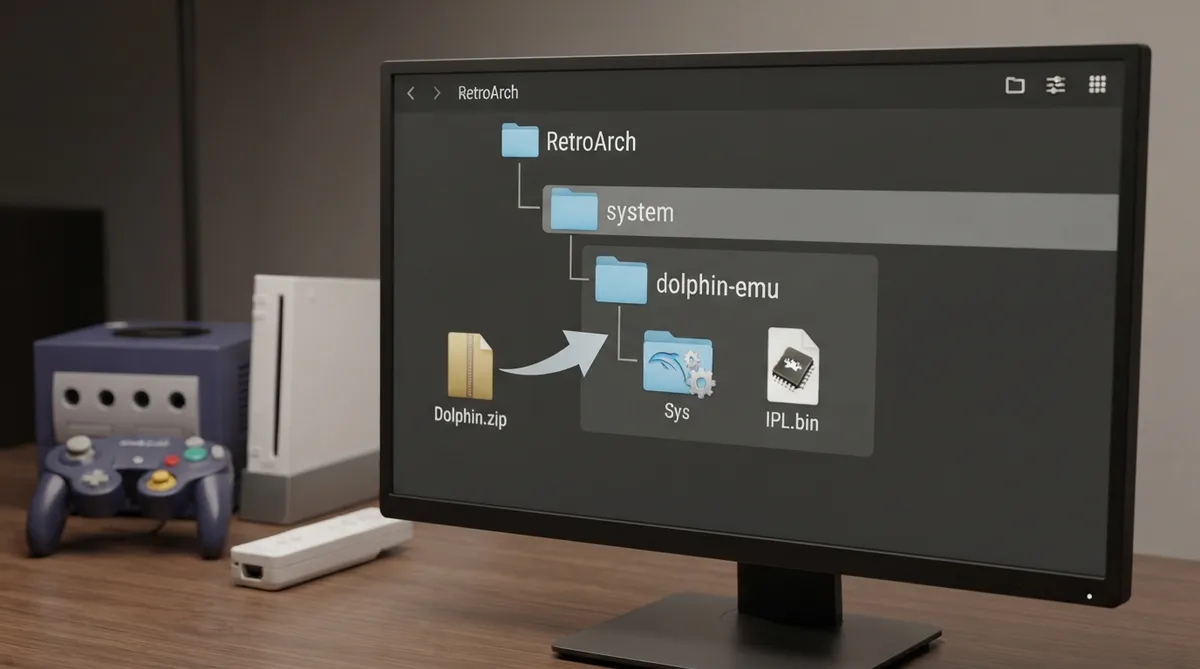
The dolphin-libretro core brings Nintendo GameCube and Wii emulation to RetroArch. This guide summarizes the official libretro documentation, covering the system file setup required for the core to run reliably, optional BIOS configuration, supported game formats, core options and controller mapping.
Overview
Dolphin is a Nintendo GameCube and Wii emulator written in C++, targeting Android, Windows, Mac and Linux. The libretro core supports OpenGL, Vulkan and Direct3D 11 rendering.
Renderer requirements
Each renderer has its own hardware and driver requirement. Confirm your system meets the relevant requirement before selecting a video driver in RetroArch.
Setting up the Dolphin Sys folder
To function properly, the core requires the Dolphin Sys folder in the correct location. This folder contains Dolphin's database of per-game compatibility settings and hacks. Without it, the documentation states that many games experience bugs of varying severity. After downloading the core within RetroArch, choose one of the two methods below.
Method A: Core System Files Downloader (easy)
If your frontend version includes Main Menu > Online Updater > Core System Files Downloader, this is the easiest option. Download Dolphin.zip from that menu, and the files are placed where they are needed.
Method B: Manual install from the repository
- 1. Obtain a copy of the Dolphin Sys folder from the source code. With Git, clone the most recent version with: git clone --depth=1 https://github.com/libretro/dolphin.git. Without Git, download the zip archive from https://github.com/libretro/dolphin/archive/master.zip and extract it.
- 2. Navigate into the resulting source tree folder. The Sys folder you need is located in Data/Sys; move or copy that folder.
- 3. Locate RetroArch's system folder path. By default the system folder sits at the top level of your RetroArch installation folder. You can confirm the location under Settings > Directory, or by finding the system_directory line in the RetroArch configuration file (usually retroarch.cfg).
- 4. Inside the RetroArch system folder, create a new folder named dolphin-emu and move or copy the Sys folder into it.
Expected folder path
When everything is set up properly, the Sys folder path should resolve to RETROARCH_SYSTEM_FOLDER/dolphin-emu/Sys. According to the documentation, the core will then work much more reliably.
Optional GameCube BIOS
The BIOS file is optional and belongs in RETROARCH_SAVES_FOLDER/dolphin-emu/User/GC/<USA or EUR or JAP>, using the file name IPL.bin for all regions. A BIOS is not necessary for most games, but certain titles that make heavy use of system fonts, such as Star Fox Assault, can be unplayable without it.
To play the GameCube BIOS animation at game launch, place and name the BIOS file as described above, then open Dolphin.ini in RETROARCH_SAVES_FOLDER/dolphin-emu/User/GameSettings/Config/ with a text editor and change the line SkipIPL = True to SkipIPL = False.
Supported content formats
The core can load content with the following extensions: .elf, .iso, .gcm, .dol, .tgc, .wbfs, .ciso, .gcz, .wad, .rvz and .m3u.
Frontend features
The core respects several RetroArch frontend features, including saves, save states, rewind, core options, memory monitoring for achievements, native cheats, controls and remapping. Features listed as unsupported in the documentation include netplay, RetroArch cheats, multi-mouse, rumble, sensors, camera, location, subsystem, softpatching, disk control, username, crop overscan and LEDs.
Renderer options
Set RetroArch's video driver to gl to use Dolphin's OpenGL renderer. This is the common option across all operating systems and requires hardware supporting OpenGL/Open GL ES 3.0 or higher.
Set RetroArch's video driver to vulkan to use Dolphin's Vulkan renderer. Doing so requires a Vulkan-capable system, per the documentation's renderer requirements.
Set RetroArch's video driver to d3d11 to use Dolphin's Direct3D 11 renderer, which the documentation lists as requiring Direct3D 11 support.
Reference table · Scroll horizontally to see all columns.
| Core option | Default | Available values |
|---|---|---|
| Renderer | Hardware | Hardware | Software |
| Internal Resolution | x1 (640 x 528) | x1 through x6 |
| Widescreen (Wii) | ON | ON | OFF |
| WideScreen Hack | OFF | OFF | ON |
| Shader Compilation Mode | sync | sync | a-sync Skip Rendering | sync UberShaders | a-sync UberShaders |
| Wait for Shaders before Starting | OFF | OFF | ON |
| Progressive Scan | ON | ON | OFF |
| PAL60 | ON | ON | OFF |
| Max Anisotropy | 1x | 1x | 2x | 4x | 8x | 16x |
| Skip Presenting Duplicate Frames | ON | ON | OFF |
| Scaled EFB Copy | ON | ON | OFF |
| Force Texture Filtering | OFF | OFF | ON |
| Store EFB Copies on GPU | ON | ON | OFF |
| Texture Cache Accuracy | Fast | Fast | Middle | Safe |
| GPU Texture Decoding | OFF | OFF | ON |
| Fast Depth Calculation | ON | ON | OFF |
| Bounding Box Emulation | OFF | OFF | ON |
| Disable EFB to VRAM | OFF | OFF | ON |
| Load Custom Textures | OFF | OFF | ON |
| CPU Core | JIT64/JITARM64 | JIT64/JITARM64 | Interpreter | Cached Interpreter |
| CPU Clock Rate | 100% | 5% to 300% |
| Fastmem | ON | ON | OFF |
| Wiimote IR Mode | Right Stick controls pointer (relative) | Three pointer-control modes |
| Wiimote IR Vertical Offset | 10 | -50 to 50 |
| Wiimote IR Total Yaw | 15 | 0 to 100 |
| Wiimote IR Total Pitch | 15 | 0 to 100 |
| Rumble | ON | ON | OFF |
| Sensor Bar Position | Bottom | Bottom | Top |
| Wiimote Continuous Scanning | OFF | OFF | ON |
| Use ports 5-8 for GameCube controllers in Wii mode | OFF | OFF | ON |
| Audio Mixer Rate | 32000 | 32000 | 48000 |
| DSP HLE | ON | ON | OFF |
| DSP Enable JIT | ON | ON | OFF |
| Language | English | English | Japanese | German | French | Spanish | Italian | Dutch | Simplified Chinese | Traditional Chinese | Korean |
| Internal Cheats Enabled | OFF | OFF | ON |
| OSD Enabled | ON | ON | OFF |
| Log Level | Info | Info | Notice | Error | Warning |
git clone --depth=1 https://github.com/libretro/dolphin.gitSources & references
Content responsibility: FrameTinker editorial desk. Source authors and software maintainers are credited separately below; this is not a claim of hands-on testing.
Published .
RetroArch: dolphin — official gaming software documentation https://raw.githubusercontent.com/libretro/docs/master/docs/library/dolphin.mdRetrieved Oct 12, 2026Something doesn’t match your setup?
Suggest a correction