

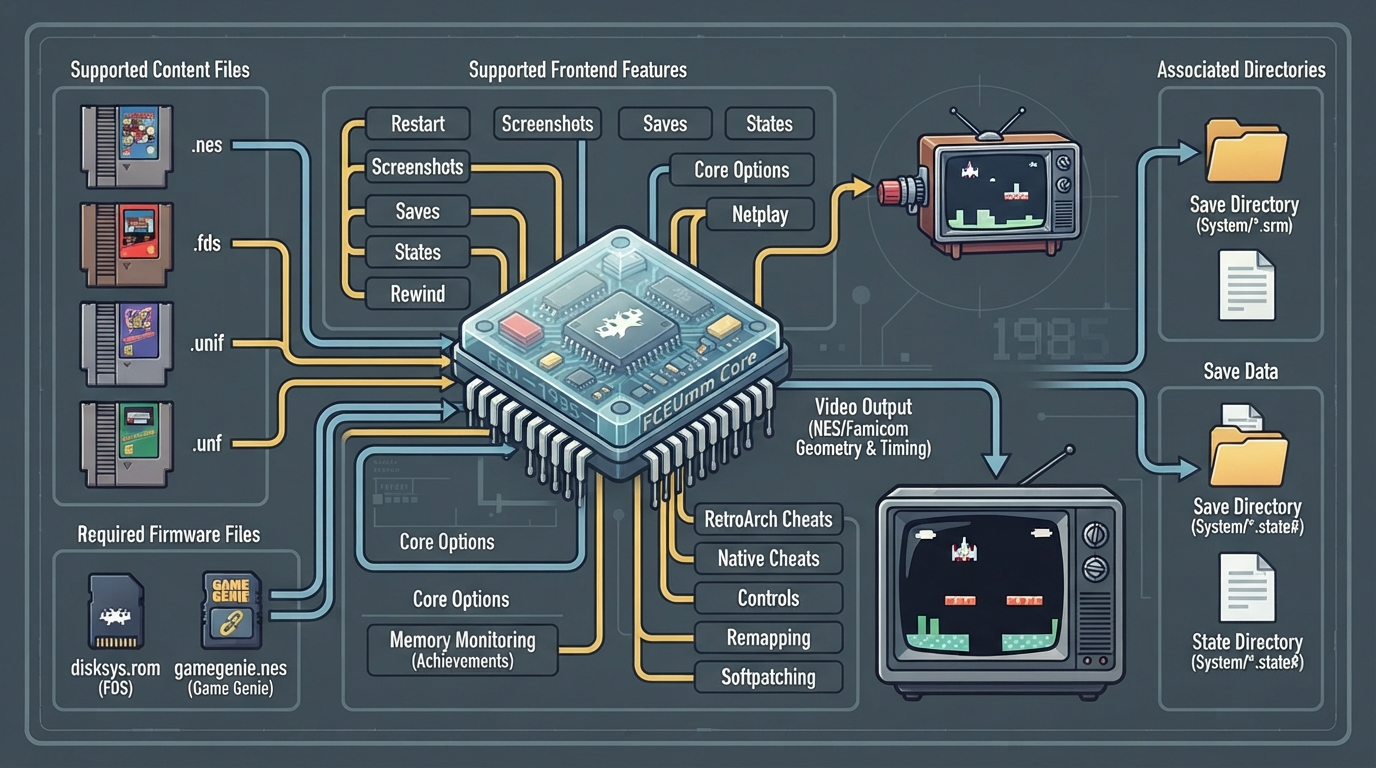
FCEUmm is a libretro emulation core for the Nintendo Entertainment System and Famicom, used through the RetroArch frontend. The official documentation describes it as FCEU "mappers modified" — an unofficial build of FCEU Ultra by CaH4e3 that supports many new mappers, including obscure ones used by unlicensed NES ROMs. The core is authored by the FCEU Team and CaH4e3 and is licensed under GPLv2.
Content Types the Core Loads
- Content can be loaded from the following file extensions:
- - .fds
- - .nes
- - .unif
- - .unf
Two RetroArch databases are associated with this core: Nintendo - Nintendo Entertainment System and Nintendo - Family Computer Disk System.
Required Firmware Files
Firmware files the core may require or optionally use belong in the frontend's system directory. The documentation lists two files: disksys.rom, the Family Computer Disk System BIOS, which is required for Famicom Disk System emulation, and gamegenie.nes, the Game Genie add-on cartridge, which is required for Game Genie add-on emulation.
Frontend Features the Core Respects
- Supported frontend-level features include: Restart, Screenshots, Saves, States, Rewind, Netplay, Core Options, Memory Monitoring (achievements), RetroArch Cheats, Native Cheats, Controls, Remapping and Softpatching.
Save, State and System Directories
The core's internal core name is 'FCEUmm'. It saves and loads from the frontend's save directory (cartridge battery saves use the *.srm extension) and the frontend's state directory (savestates use the *.state# extension). The frontend's system directory holds a custom palette file named nes.pal, described as a palette of 64 triplets.
Using a Custom Color Palette
- To use a custom color palette with FCEUmm:
- 1. Place the custom palette file in RetroArch's system directory.
- 2. Name the file nes.pal.
- 3. Set the 'Color Palette' core option to custom.
- The documentation notes that custom NES color palettes can be generated with Bisqwit's NTSC NES palette generator or Drag's NTSC NES palette generator.
Geometry and Timing
The core reports an FPS of 60.10 for NTSC and 50.0 for PAL/Dendy, a sample rate of 48000 Hz, a base and maximum resolution of 256x240 (base and maximum width become 602 when NTSC filters are used), and a core-provided aspect ratio of 4:3 DAR or 8:7 PAR.
Core Options at a Glance
FCEUmm exposes a set of core options in the core options menu. Default values are shown in bold in the documentation. Options marked (Restart) require the core to be closed before the new setting takes effect on the next launch. The option groups below describe what each setting does according to the documentation.
- System and video options:
- - Region [fceumm_region] — default Auto; alternatives NTSC, PAL, Dendy. Forces the core to use NTSC, PAL or Dendy system audio/video timings.
- - Preferred aspect ratio [fceumm_aspect] — default 8:7 PAR; alternative 4:3. RetroArch's aspect ratio must be set to Core provided in the Video settings.
- - Color Palette [fceumm_palette] — default default. Choices include asqrealc, nintendo-vc, rgb, yuv-v3, unsaturated-final, sony-cxa2025as-us, pal, bmf-final2, bmf-final3, smooth-fbx, composite-direct-fbx, pvm-style-d93-fbx, ntsc-hardware-fbx, nes-classic-fbx-fs, nescap, wavebeam, raw and custom. The raw palette can be combined with the nes-decoder shader to derive colors from Bisqwit's NES palette generator, applying either an FCC color conversion matrix or a specific Sony US matrix.
- - Crop Overscan (Horizontal) [fceumm_overscan_h] — default disabled. Crops the potentially random glitchy video output that would have been hidden by the bezel of a standard-definition television.
- - Crop Overscan (Vertical) [fceumm_overscan_v] — default enabled. Same purpose, applied vertically.
- - No Sprite Limit [fceumm_nospritelimit] — default disabled. Removes the 8-sprites-per-scanline hardware limit.
- - NTSC Filter [fceumm_ntsc_filter] — default disabled. Enables blargg NTSC filters: composite (color bleeding plus artifacts), svideo (color bleeding only), rgb (crisp image) and monochrome (desaturated plus artifacts).
- - Overclocking [fceumm_overclocking] — default disabled; alternatives 2x-Postrender and 2x-VBlank. Overclocks the NES using a PPU method to minimize in-game slowdowns in some games.
- Sound options:
- - Sound Volume [fceumm_sndvolume] — values 0 through 10, default 7.
- - Sound Quality [fceumm_sndquality] — default Low; alternatives High and Very High. Higher settings enable higher sound quality for games using expansion audio (MMC5, VRC6, VRC7, Namco, Sunsoft); Low is suggested for slower devices.
- - Swap Duty Cycles [fceumm_swapduty] — default disabled. Replicates the sound of some famiclones that have duty cycles swapped for square channels.
- - Show Advanced Sound Options [fceumm_show_adv_sound_options] — default disabled. Shows advanced sound controls and tweaks.
- Input and behavior options:
- - Allow Opposing Directions [fceumm_up_down_allowed] — default disabled. Allows pressing, quickly alternating or holding both left and right (or up and down in some games) at the same time; the documentation notes this may cause movement-based glitches in certain games and that keeping it disabled is best.
- - Turbo Enable [fceumm_turbo_enable] — default None; alternatives Player 1, Player 2 and Both. Enables the Turbo A and Turbo B buttons.
- - Turbo Delay (in frames) [fceumm_turbo_delay] — default 3; alternatives 5, 10, 15, 30, 60, 1 and 2. Sets the number of frames between consecutive button presses while Turbo B or Turbo A is held.
- - Zapper Mode [fceumm_zapper_mode] — default lightgun; alternatives touchscreen and mouse. Pointer allows the Zapper device type to be used for touch devices while still usable with a regular mouse; Pointer and Mouse movement behave differently with different input drivers.
- - Show Crosshair [fceumm_show_crosshair] — default enabled. Shows the crosshair for the Zapper device type.
- - RAM power up state (Restart) [fceumm_ramstate] — default $FF; alternatives $00 and random. Chooses the RAM startup state on power up; some games rely on initial RAM values, and some unlicensed carts and ROM hacks prefer $00 or will not boot or will show graphics glitches.
- - Show Advanced System Options [fceumm_show_adv_system_options] — default disabled. Shows advanced system options and tweaks.
Controller Device Types
- User 1 device types:
- - None — input disabled.
- - Auto (default) — a joypad; based on the loaded game's CRC, the core automatically selects a regular NES or Famicom controller.
- - Gamepad — manually selects a regular NES or Famicom controller.
- - Zapper — a mouse-type device; manually selects a Zapper light gun for User 1.
- User 2 device types:
- - None — input disabled.
- - Auto (default) — based on the loaded game's CRC, automatically selects a regular controller, a Zapper light gun or an Arkanoid Paddle (NES only).
- - Gamepad — manually selects a regular NES or Famicom controller.
- - Arkanoid — a mouse-type device; manually selects an Arkanoid Paddle (NES only).
- - Zapper — a mouse-type device; manually selects a Zapper light gun.
Users 3 and 4 exist for multitap games; the core supports up to 4 players in multitap games for the NES and Famicom, detected by the loaded game's CRC. Multitap can also be enabled manually by selecting 4-Player Adaptor in the User 5 device type. For Famicom content, the core can additionally auto-select an Arkanoid Paddle (Famicom), Bandai Hyper Shot Gun, Oeka Kids Tablet, or force multitap mode via the 4-Player Adaptor, based on the loaded game's CRC.
Which input controls the Zapper device type depends on the 'Zapper Mode' core option: lightgun allows control with lightgun inputs such as a Wii remote, touchscreen allows touch inputs, and mouse allows mouse inputs.
Documented Compatibility Limitation
The documentation records one known compatibility issue: Skull & Crossbones exhibits graphical glitches and screen shaking when in 2-player mode. This is the only compatibility entry listed on the page.
Reference table · Scroll horizontally to see all columns.
| Filename | Description | MD5 |
|---|---|---|
| disksys.rom | Family Computer Disk System BIOS — required for Famicom Disk System emulation | ca30b50f880eb660a320674ed365ef7a |
| gamegenie.nes | Game Genie add-on cartridge — required for Game Genie add-on emulation | 7f98d77d7a094ad7d069b74bd553ec98 |
Reference table · Scroll horizontally to see all columns.
| Property | Value |
|---|---|
| Core FPS | NTSC 60.10; PAL/Dendy 50.0 |
| Sample rate | 48000 Hz |
| Base / max width | 256 (602 when using NTSC filters) |
| Base / max height | 240 |
| Provided aspect ratio | 4:3 DAR or 8:7 PAR |
| Internal core name | FCEUmm |
Reference table · Scroll horizontally to see all columns.
| Directory | Files | Purpose |
|---|---|---|
| Frontend save directory | *.srm | Cartridge battery save |
| Frontend state directory | *.state# | Savestate |
| Frontend system directory | nes.pal | Custom palette (64 triplets) |
Reference table · Scroll horizontally to see all columns.
| User | Device types | Default |
|---|---|---|
| User 1 | None; Auto; Gamepad; Zapper | Auto |
| User 2 | None; Auto; Gamepad; Arkanoid; Zapper | Auto |
| User 3–4 (multitap) | None; Auto; Gamepad | Auto |
| User 5 (other controllers) | Arkanoid Paddle (Famicom); Bandai Hyper Shot Gun; Oeka Kids Tablet; 4-Player Adaptor | Auto-selected by game CRC where applicable |
Reference table · Scroll horizontally to see all columns.
| Core option | Default | Notable alternatives |
|---|---|---|
| Region | Auto | NTSC, PAL, Dendy |
| Preferred aspect ratio | 8:7 PAR | 4:3 |
| Color Palette | default | asqrealc, nintendo-vc, rgb, yuv-v3, unsaturated-final, sony-cxa2025as-us, pal, bmf-final2, bmf-final3, smooth-fbx, composite-direct-fbx, pvm-style-d93-fbx, ntsc-hardware-fbx, nes-classic-fbx-fs, nescap, wavebeam, raw, custom |
| Crop Overscan (Horizontal) | disabled | enabled |
| Crop Overscan (Vertical) | enabled | disabled |
| No Sprite Limit | disabled | enabled |
| NTSC Filter | disabled | composite, svideo, rgb, monochrome |
| Overclocking | disabled | 2x-Postrender, 2x-VBlank |
| RAM power up state (Restart) | $FF | $00, random |
| Sound Volume | 7 | 0–10 |
| Sound Quality | Low | High, Very High |
| Swap Duty Cycles | disabled | enabled |
| Allow Opposing Directions | disabled | enabled |
| Turbo Enable | None | Player 1, Player 2, Both |
| Turbo Delay (in frames) | 3 | 5, 10, 15, 30, 60, 1, 2 |
| Zapper Mode | lightgun | touchscreen, mouse |
| Show Crosshair | enabled | disabled |
| Show Advanced System Options | disabled | enabled |
| Show Advanced Sound Options | disabled | enabled |
Reference table · Scroll horizontally to see all columns.
| Game | Issue |
|---|---|
| Skull & Crossbones | Graphical glitches and screen shaking when in 2-player mode. |
Sources & references
Content responsibility: FrameTinker editorial desk. Source authors and software maintainers are credited separately below; this is not a claim of hands-on testing.
Published .
RetroArch: fceumm — official gaming software documentation https://raw.githubusercontent.com/libretro/docs/master/docs/library/fceumm.mdRetrieved Oct 13, 2026Something doesn’t match your setup?
Suggest a correction