

This guide summarizes the official RetroArch documentation for downloading, installing, and updating RetroArch on Windows. It is a source summary: the steps have not been hands-on tested for this article.
Choosing a release type
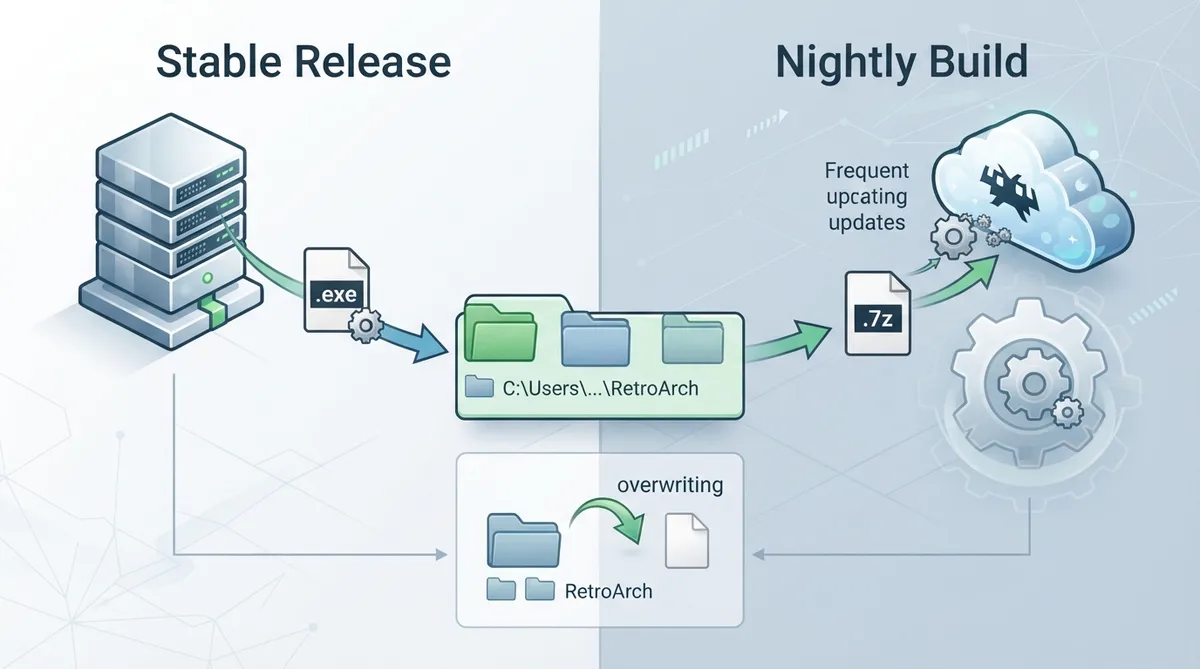
The documentation directs users to first decide between a stable release and a nightly build. Both are portable installations; the main difference is that one is a self-extracting installer and the other is an archive that must be extracted manually.
- - Stable: described as the main distribution version, released periodically, with features that may be removed, improved, or changed in subsequent versions
- - Nightly: contains the latest commits and enhancements added daily, and may not be as stable as the stable version
Downloading RetroArch
Stable releases are available from the Libretro buildbot stable directory, where you then select the architecture matching your computer. Current nightly builds are available from the Libretro buildbot nightly directory for Windows. For a new installation, the documentation points to RetroArch.7z or the setup package named like RetroArch-20XX-XX-XX-setup.exe.
Installing from the 7z archive
- - Extract the 7z archive into a folder that does not require administrator permissions, such as C:\Users\yourusername\RetroArch or another drive
- - Avoid extracting into Program Files or the Windows folder, which the documentation says could cause issues
Updating an existing installation
- - Archive install: download the latest package named like 20XX-XX-XX-RetroArch.7z and overwrite the executable
- - Installer install: download the latest version and re-run the installer; the documentation recommends using the default location and following the installation steps
First run and interface
On first run, RetroArch opens to its main screen, where you can launch content, change settings, and build a content collection. The interface is designed with gamepad navigation in mind but also supports keyboard and mouse.
Gamepad configuration
The documentation states that XINPUT controllers should work out of the box and that built-in autoconfig profiles cover many popular controllers. If a controller does not autoconfigure, you can bind it manually.
- - Navigate to Settings
- - Navigate to Input
- - Navigate to Input User 1 Binds
- - Select User 1 Bind All
- - Press the buttons as required
Configuring directories
- - Navigate to Settings
- - Navigate to Directory
- - Select the directory you want to change
- - Navigate to the desired location
The documentation recommends always configuring these paths: the System Directory for system files, the Savefile Directory for save files, the Savestate Directory for save state files, and the Browser Directory for your content. The Browser Directory is used as a startup location that allows easy access to your content library.
Installing cores
RetroArch requires cores to run any content. Cores can be downloaded directly from the RetroArch interface using the Online Updater: select Select Core Downloader, then select the core you want to download.
Running content
- - Navigate to Load Content
- - Browse to the folder that contains the content you want to run
- - Select the content you want to run
- - If more than one compatible core is available, select the core you want to use
Reference table · Scroll horizontally to see all columns.
| Term | Definition |
|---|---|
| frontend | A program designed to run libretro cores, such as Kodi's RetroPlayer, RetroArch, Phoenix, or Minir |
| core | A program ported to the libretro API that runs inside a libretro frontend |
| content | A game, image, video, or audio file executed by a core; often a ROM of an emulated platform |
| retropad | libretro's input abstraction controller, the interface between a physical controller and core inputs |
| save files | Saves made from within a game; usually cross-platform and generally interchangeable between emulators |
| save states | Snapshots of content memory at a particular moment; not always cross-platform and generally not portable between different emulators |
| system files | Additional files that may be needed for some content to work, usually referred to as BIOS files |
| autoconf | A configuration file containing button definitions for a particular gamepad |
Sources & references
Published .
RetroArch: install windows — official gaming software documentation https://raw.githubusercontent.com/libretro/docs/master/docs/guides/install-windows.mdRetrieved Oct 8, 2026Something doesn’t match your setup?
Suggest a correction