

Overview
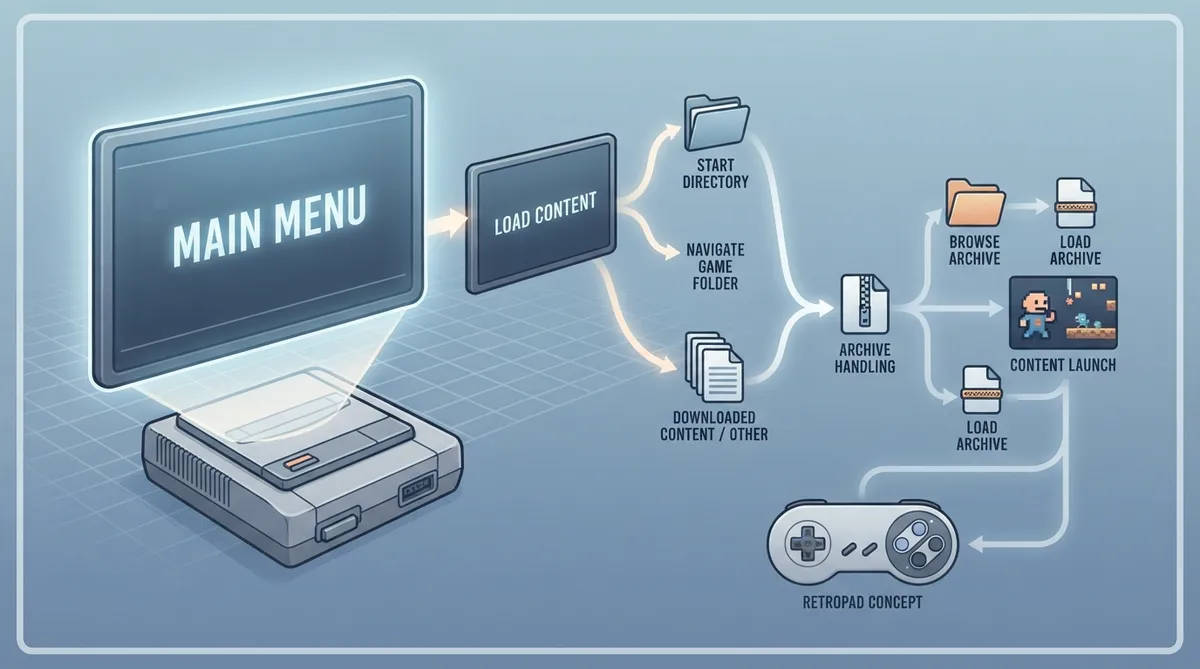
Once you have both cores and content in place, the next task is loading that content so it can run. RetroArch's launch flow is handled from the Main Menu through the Load content option.
Prerequisites
You should already have your cores and content available. The documentation assumes that you have obtained the content legally; RetroArch does not provide users with copyright content.
The documentation also notes that you should already have both cores and content before launching.
Launching Content: Step by Step
- 1. Go back to the Main Menu and select Load content.
- 2. If you previously set a default start directory, choose Start directory. If you have not set one, or you are choosing other content such as downloaded content, select the relevant option.
- 3. Navigate your game folder to find the game you want to try, then select it.
Handling Zipped Content
If the game is zipped, you will be presented with two options. Browse archive lets you open the archive and select the contents. Load archive tries to load the archive as an image. In most cases, if you simply compressed the image, either option will do.
Automatic Core Selection
RetroArch will automatically choose the appropriate core for your content based on the file extension. However, if two or more cores use the same file extension, it will ask you to choose the core. In that case, the documentation says you should always choose the platform the game was supposed to run on.
While Playing
Once your game has launched, the documentation points to the RetroPad concept. With it, you will not have to set up a controller for each console; instead, the RetroPad adapts depending on what console you are playing.
To return to RetroArch, press F1 or the RetroArch button on mobile. This brings up the menu where you can change core settings, otherwise configure the current content, or close it.
Reference table · Scroll horizontally to see all columns.
| Documented situation | What the documentation says |
|---|---|
| Default start directory already set | Choose Start directory after selecting Load content |
| Zipped game | Browse archive to open and select contents, or Load archive to load the archive as an image |
| Two or more cores share a file extension | RetroArch asks you to choose the core; pick the platform the game was supposed to run on |
| Returning to RetroArch menu | Press F1, or the RetroArch button on mobile |
| Closing on PC | Pressing Esc twice closes RetroArch without saving |
Sources & references
Published .
RetroArch: launch content — official gaming software documentation https://raw.githubusercontent.com/libretro/docs/master/docs/guides/launch-content.mdRetrieved Oct 8, 2026Something doesn’t match your setup?
Suggest a correction