

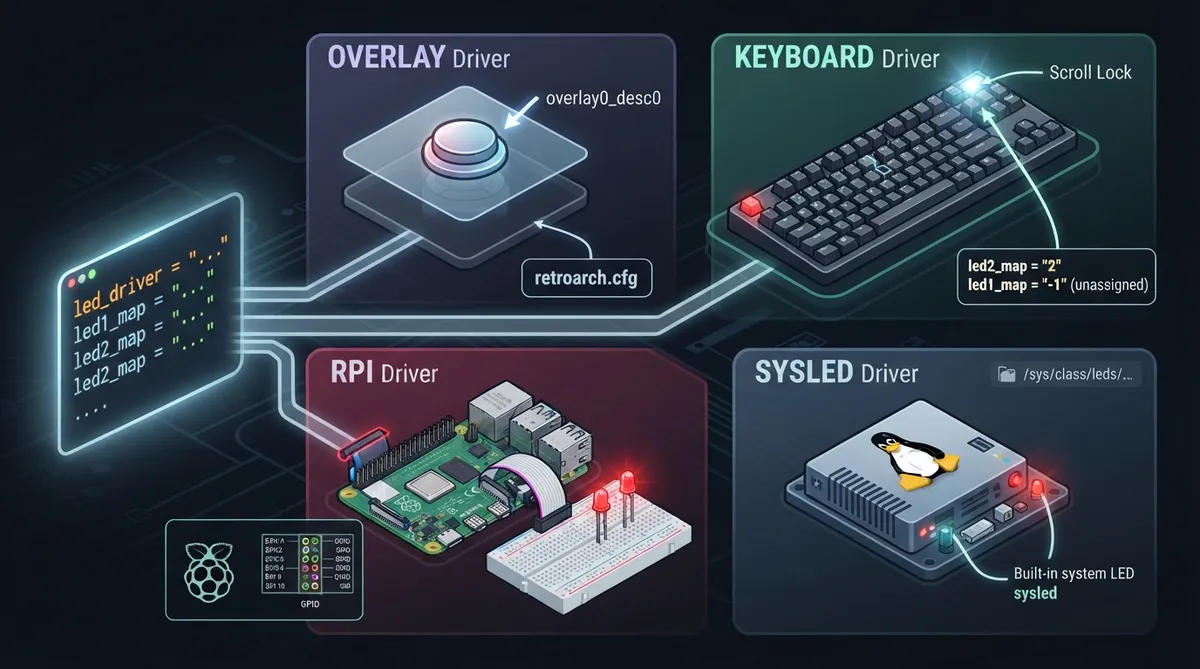
Libretro cores can expose extra on/off outputs that provide simple visual feedback, such as an illuminated Start button for arcade titles or an activity indicator for disk access inside the emulated system.
Available LED Drivers
- overlay — controls individual elements of a RetroArch overlay
- rpi — controls physical LEDs connected to GPIO pins
- keyboard — controls keyboard state LEDs
- sysled — controls built-in LEDs under Linux
Configuring LED Drivers
For every driver, both the LED driver type and the individual LED mapping must be added to retroarch.cfg. At present this cannot be done through the RetroArch menu system — the configuration file has to be edited directly.
Overlay Driver
For the overlay driver to have any effect, a compatible overlay must be active. The driver sets the visibility of items such as overlay0_desc0_overlay and overlay0_desc1_overlay according to input from the core.
led_driver = "overlay"
led1_map = "0"
led2_map = "1"
RPi Driver
The RPi driver sets the specified GPIO pins to the out direction and then sets their value through the filesystem entry /sys/class/gpio/gpio%d/value. This entry is typically present on Raspberry Pi single-board computers.
led_driver = "rpi"
led1_map = "18"
Keyboard Driver
The keyboard driver uses the Num Lock (0), Caps Lock (1), and Scroll Lock (2) LEDs. It works under Windows and under X11 (since RetroArch 1.9.1). It does not work under Linux Wayland or KMS mode, and under X11 access to the Num Lock and Caps Lock LEDs may be limited.
led_driver = "keyboard"
led1_map = "-1"
led2_map = "2"
In this example the second LED is assigned to Scroll Lock, while the first LED is left explicitly unassigned using the value -1.
Sysled Driver
The sysled driver sets the brightness of supported mainboard LEDs through the filesystem entry /sys/class/leds/led%d/brightness. This entry is typically present on Raspberry Pi single-board computers, where led0 is the green LED usually indicating MMC card activity and led1 is the red LED. The driver was added in RetroArch 1.15.0.
led_driver = "sysled"
led1_map = "1"
led2_map = "0"
After adding the driver and mapping lines to retroarch.cfg, restart RetroArch so the new LED configuration is picked up. Verify the result against whichever feedback channel you selected — overlay elements, GPIO-connected LEDs, keyboard state LEDs, or Linux mainboard LEDs.
Reference table · Scroll horizontally to see all columns.
| Driver | What it controls | Notes |
|---|---|---|
| overlay | Individual elements of a RetroArch overlay | Requires a compatible active overlay; sets overlay0_desc0_overlay and similar items |
| rpi | Physical LEDs connected to GPIO pins | Sets pins to out direction; writes to /sys/class/gpio/gpio%d/value |
| keyboard | Keyboard state LEDs (Num Lock, Caps Lock, Scroll Lock) | Works under Windows and X11 (since RetroArch 1.9.1); not under Linux Wayland or KMS |
| sysled | Built-in LEDs under Linux | Uses /sys/class/leds/led%d/brightness; added in RetroArch 1.15.0 |
Sources & references
Published .
RetroArch: led drivers — official gaming software documentation https://raw.githubusercontent.com/libretro/docs/master/docs/guides/led-drivers.mdRetrieved Oct 8, 2026Something doesn’t match your setup?
Suggest a correction