

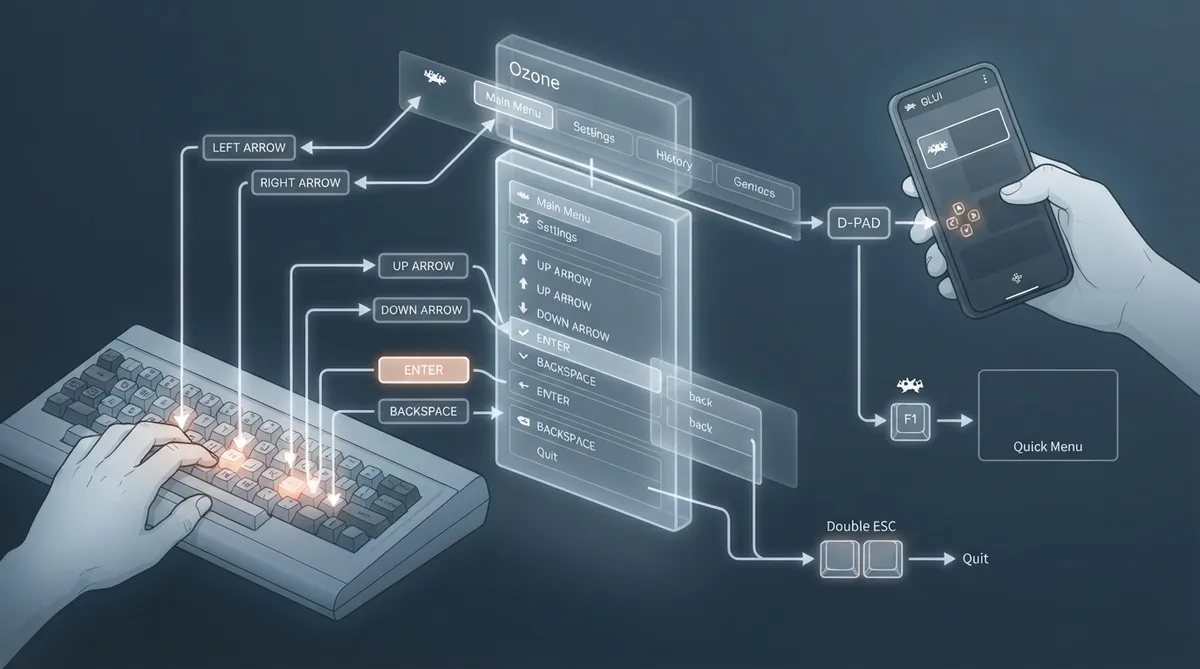
This guide summarizes navigation in RetroArch as described in the official documentation page on navigating. It covers the desktop keyboard scheme, controller movement, tab and option navigation, the default interface, opening the Quick Menu during a game, quitting the program, and the mobile interface layout. It is a source summary of the documentation, not a record of hands-on testing.
Supported Control Scheme
RetroArch determines the control scheme automatically based on the device in use. On a computer, standard keyboard combinations apply: the arrow keys move, the Enter key selects, and the Backspace key goes back. If a controller is connected, the D-Pad can also be used to move.
Desktop Navigation Steps
- 1. Move between tabs with the left and right arrow keys. Each tab relates to an aspect of the RetroArch experience, such as the main menu for game loading or settings for configuration.
- 2. Once the desired tab is selected, move between options with the up and down arrow keys.
- 3. Press Enter or Return to advance in the menu.
- 4. Press Backspace to return to the previous menu.
Opening the Quick Menu In-Game
Quitting the Program
Pressing Esc twice quits the program.
Default Interface
The default graphical interface for RetroArch is Ozone. The visual skin may differ across platforms, but the basic layout and navigation remain broadly the same.
Tabs Described in the Documentation
- Main Menu: launch games, download and update cores, and access freely available content.
- Settings: configure graphics, input, sound, and other options.
- Favorites: a short list of games for quick access, addable from the Quick Menu or before launching content.
- History: recently launched content, with the most recent at the top.
- Image, Music and Video: media handling, including screenshots.
- Netplay: peer-to-peer multiplayer over the internet, hosting or joining sessions, and spectator mode, with a built-in lobby.
- Import content: automatic scanning against the internal database, or manual scanning independent of the database.
Mobile Navigation
The mobile interface, GLUI, is more minimalistic than the desktop interface. Touch is the default input, although other options may be available depending on the device. The documentation states that three tabs can be switched at the bottom of the menu; it does not provide a single fully supporting evidence span for the complete list of tab names in the collected source excerpt.
Reference table · Scroll horizontally to see all columns.
Sources & references
Published .
RetroArch: navigating — official gaming software documentation https://raw.githubusercontent.com/libretro/docs/master/docs/guides/navigating.mdRetrieved Oct 8, 2026Something doesn’t match your setup?
Suggest a correction