

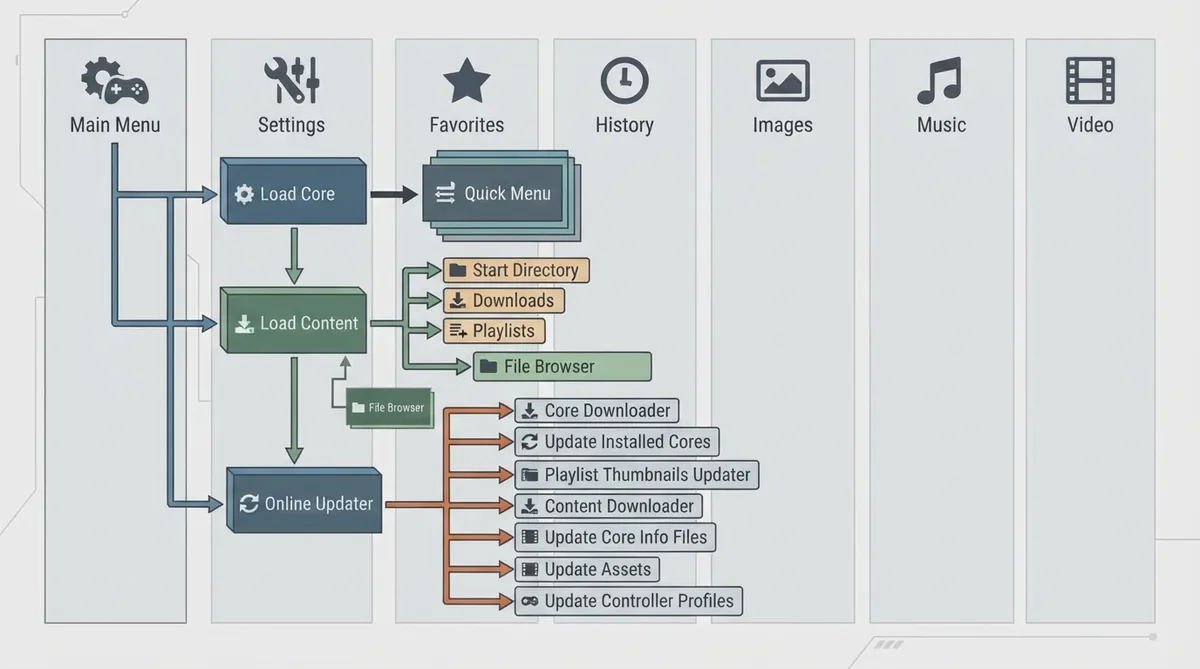
This guide is a structured summary of the official RetroArch "XMB Menu Map" documentation. It explains how the XMB interface is organized so you can find core functions, setting groups, and content-management tools faster. All menu names and paths below follow the source spelling. Because this is a documentation summary, the steps have not been hands-on tested.
How to read this map
The XMB interface is arranged as horizontal tabs, and each tab expands into a list of items and submenus. The main menu is the entry point where you load a core and load content. Once a core is loaded, the Quick Menu appears and changes based on the active core. The Settings tab holds grouped configuration categories such as Drivers, Video, Audio, Input, and Core. Some entries are described in the source as duplicates or shortcuts to settings found elsewhere, and some items only appear on certain platforms or devices.
Main Menu tab
Load Core and Load Content
- 1. From the Main Menu, select Load Core to choose the emulator or application core you want to run.
- 2. After a core is loaded, the same entry changes into Quick Menu, which provides content-level actions.
- 3. Use Load Content to browse to content. It expands to Start Directory, Downloads, Playlists, and the File Browser.
- 4. The source notes the File Browser entry under Load Content as a duplicate or shortcut to Settings > File Browser.
Online Updater
The Online Updater is the main menu section for downloading and refreshing RetroArch components. Its contents include Core Downloader, Update Installed Cores, Playlist Thumbnails Updater, Content Downloader, Update Core Info Files, Update Assets, and Update Controller Profiles. The source also notes that core availability in Core Downloader varies by platform or device.
- 1. On the Main Menu tab, open Online Updater.
- 2. To obtain cores, use Core Downloader. Availability of cores varies by platform or device.
- 3. To bring existing cores up to date, use Update Installed Cores.
- 4. To refresh support data, use Update Core Info Files, Update Assets, and Update Controller Profiles.
- 5. To add or refresh playlist imagery, use Playlist Thumbnails Updater.
- 6. To download content through the updater, use Content Downloader.
Other top-level tabs
- Favorites
- History
- Images
- Music
- Videos
- Any additional user-created playlists
- Netplay
- Import Content, which includes Scan Directory, Scan File, and Manual Scan options
- Explore, which includes Search Name and Show All
Quick Menu
Settings tab categories
The Settings tab groups configuration into topic categories. The table below lists those categories as they appear in the source.
- Drivers, Video, Audio, Input, Latency
- Core, Configuration, Saving, Logging
- File Browser, Frame Throttle, Recording
- On-Screen Display, User Interface
- AI Service, Accessibility, Power Management
- Achievements, Network, Playlists, User, Directory
Some categories include entries that are marked as duplicates or shortcuts to other settings. For example, the source lists Max swapchain images under both Settings > Video > Synchronization and Settings > Latency, and Sync to Exact Content Framerate under both Settings > Video > Synchronization and Settings > Frame Throttle. The source also marks Power Management as only available on certain devices.
Notes on reading the map
- Entries marked in the source as duplicates or shortcuts point to the same setting available elsewhere in the menu.
- Items such as Playlists, Downloads, and platform-specific entries vary by platform or device.
- Submenus such as Options, Shader Parameters, and Shader Passes vary by the active core or shader preset.
- The source notes that availability of cores, databases, cursors, and On-Demand Thumbnail Downloads can vary by platform, device, or installed content.
Reference table · Scroll horizontally to see all columns.
Sources & references
Published .
RetroArch: xmb menu map — official gaming software documentation https://raw.githubusercontent.com/libretro/docs/master/docs/guides/xmb-menu-map.mdRetrieved Oct 8, 2026Something doesn’t match your setup?
Suggest a correction