

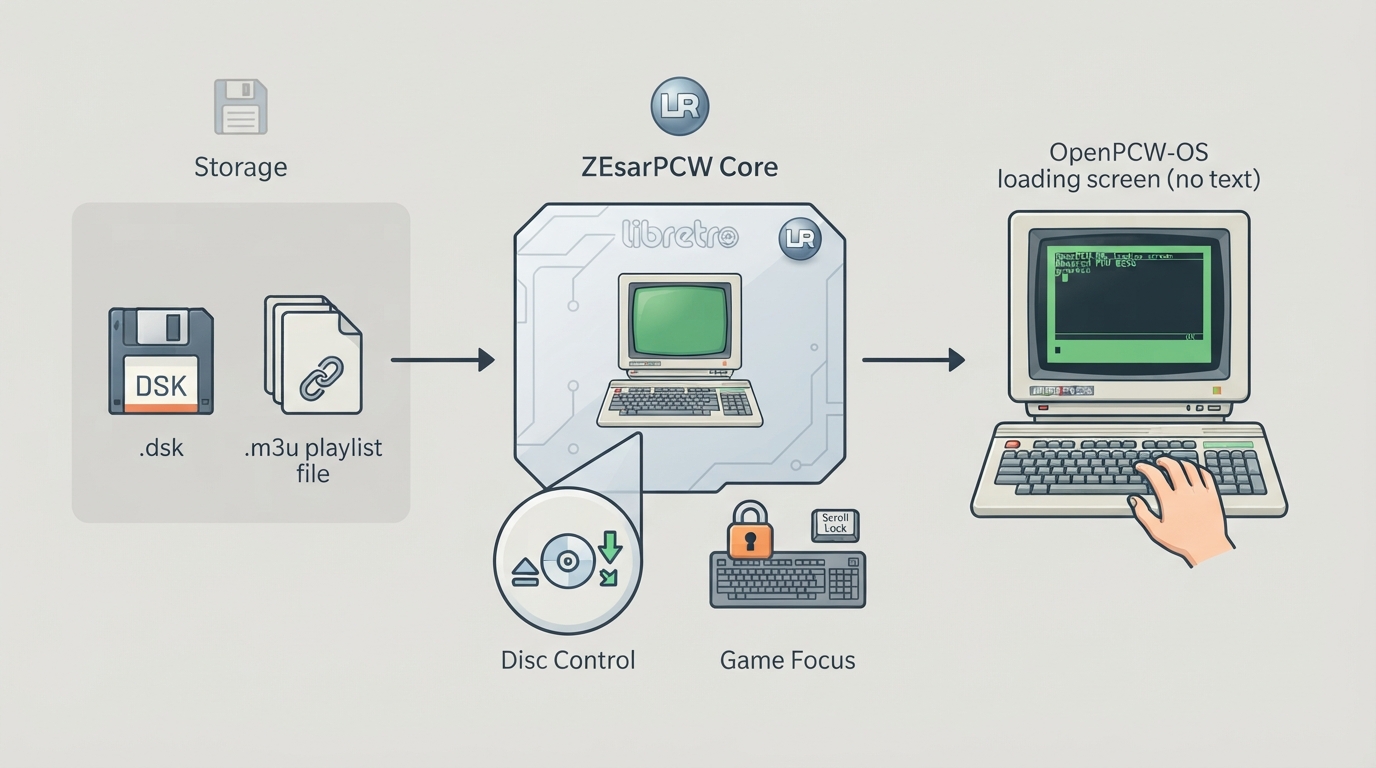
ZEsarPCW is a libretro core that emulates the Amstrad PCW 8256 and 8512. The documentation describes it as a port derived from ZEsarUX 13.0 by Cesar Hernandez Bano and maintained by retrodiv, distributed under GPLv3 with bundled components keeping their own notices. This guide summarizes the documented setup path: loading disk images, building multi-disk playlists, swapping disks and configuring keyboard input.
Before you start
- Supported content extensions: .dsk and .m3u
- External BIOS: not required; a native C bootstrap and the embedded OpenPCW-OS helper provide the startup environment
- The core does not support starting without content, so a disk image is always needed
- You must supply your own compatible software disks
Load a single disk
- Open RetroArch's Load Content option.
- Select the .dsk file you want to boot.
Load a multi-disk game with an .m3u playlist
For titles spread across several disks, load an .m3u playlist instead of an individual .dsk. Paths inside the playlist may be relative to the playlist itself. The documented format pairs each file name with a label after a pipe character:
Game - Side A.dsk|Side A
Game - Side B.dsk|Side B
Swap disks during play
When the emulated system asks for another disk, open Quick Menu → Disc Control. The documented order of actions is eject, then select the image, then insert it.
Type with a physical keyboard
Enable Game Focus to type using the physical keyboard; Scroll Lock is RetroArch's default toggle for this mode. Disable Game Focus again to restore the frontend hotkeys you use for regular navigation.
Controller and on-screen input
The core offers automatic RetroPad mappings selected by disk fingerprint, plus an on-screen keyboard that is toggled with Select by default. That toggle can be changed in the core options.
Set explicit keyboard bindings
- Open Port 1 Controls → Device Type → Custom Keyboard Bindings to reach RetroArch's keyboard selector for explicit button assignments.
- Assign the buttons you need.
- Save a game remap so the assignments are retained.
Core options
Open Quick Menu → Core Options to reach settings for the PCW model, video mode and palette, phosphor colour, crop, audio rate, AY and beeper audio, drive sound, physical keyboard mapping and input behaviour. Each option lists its own restart requirements, so follow those when changing values.
Recovery notes
If typing does not reach the emulated machine, check whether Game Focus is active and whether a remap was saved for physical keyboard bindings. If the game does not start at all, confirm you loaded an actual .dsk or .m3u, since the core does not support starting without content.
Documented feature support
Save states, rewind, core options and disk control are documented as supported. Cheats are listed as logical Z80 address and value POKEs. No external BIOS is required, and hardware rendering is not used; video output is software-based.
Reference table · Scroll horizontally to see all columns.
| Feature | Documented support |
|---|---|
| Save states | Yes |
| Rewind | Yes |
| Core options | Yes |
| Disk control | Yes |
| Cheats | Yes, logical Z80 address/value POKEs |
| External BIOS | Not required |
| Hardware rendering | No, software video |
Sources & references
Content responsibility: FrameTinker editorial desk. Source authors and software maintainers are credited separately below; this is not a claim of hands-on testing.
Published .
RetroArch: zesarpcw — official gaming software documentation https://raw.githubusercontent.com/libretro/docs/master/docs/library/zesarpcw.mdRetrieved Oct 14, 2026Something doesn’t match your setup?
Suggest a correction