

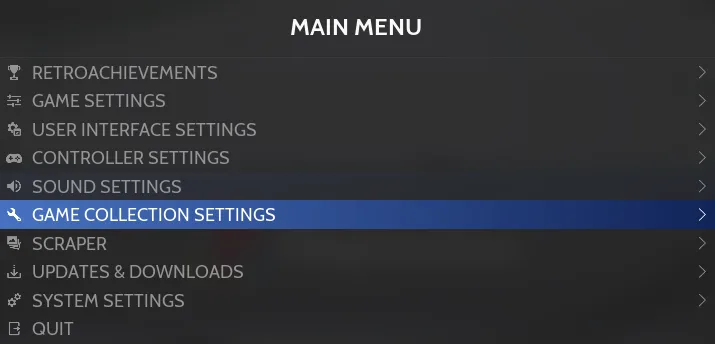
Game collections let you browse across systems rather than one system at a time. Enabled collections appear alongside systems in System View.
Enable automatic collections
- 1. Open MAIN MENU > GAME COLLECTION SETTINGS.
- 2. Select AUTOMATIC GAME COLLECTIONS.
- 3. Check the collections you want displayed—for example, ARCADE.
Automatic options include ALL GAMES, LAST PLAYED, FAVORITES, and player-count collections. ALL GAMES is also required for quick search and FIND SIMILAR GAMES. The 2 PLAYERS and 4 PLAYERS collections include games supporting at least the corresponding number of players.
Other automatic groupings include collections by genre and arcade system, such as CPS-1, CPS-2, Neo Geo, and Naomi. Only arcade systems for which you have games are listed.
Check collection prerequisites
Most automatic collections depend on game metadata, including player count, genre, and arcade system. The documentation advises scraping your games first so these collections can be complete.
For FAVORITES, mark the games you want as favorites through the Game Options menu. Enabling the collection alone does not select your favorite games.
Understand custom collection types
- - Editable collections contain games you add individually.
- - Dynamic collections contain games matching filters you define, such as genre, player count, or year, and update automatically.
- - Both types are managed through MAIN MENU > GAME COLLECTION SETTINGS.
Sources & references
Content responsibility: FrameTinker editorial desk. Source authors and software maintainers are credited separately below; this is not a claim of hands-on testing.
Published .
RetroBat: navigation — game collections — official gaming software documentation https://raw.githubusercontent.com/RetroBat-Official/retrobat-wiki/master/lang/en/navigation/game-collections.mdRetrieved Nov 5, 2026Something doesn’t match your setup?
Suggest a correction