

Open the overlay
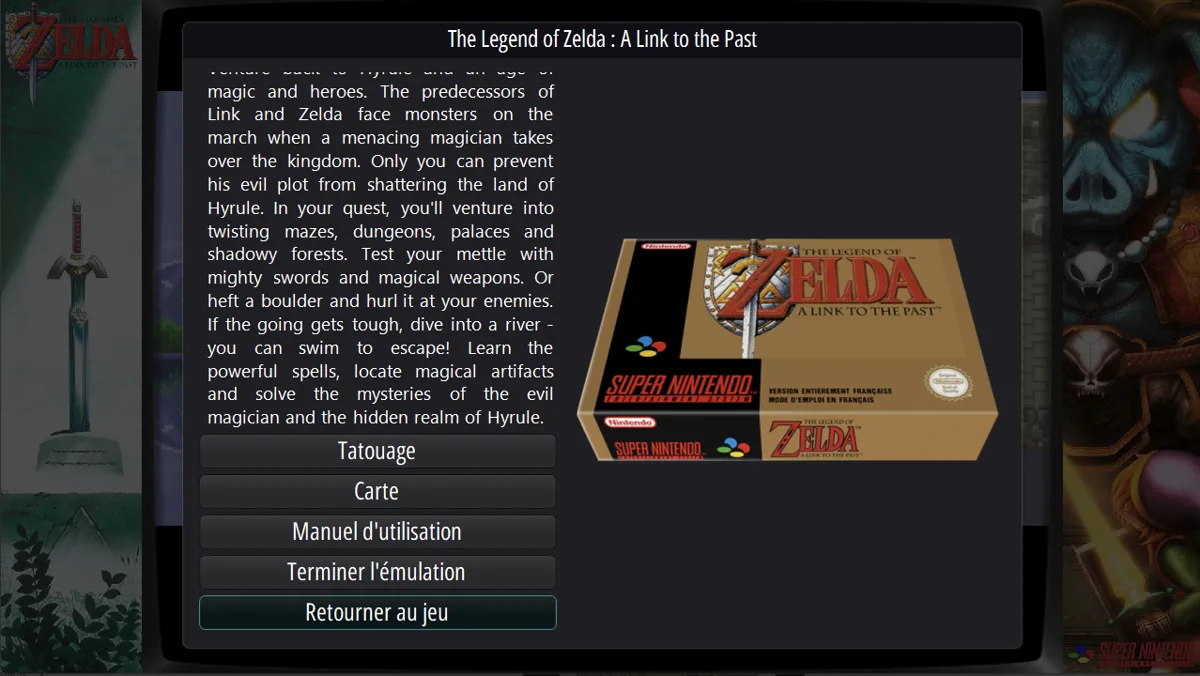
While a game is running in RetroBat, press HOTKEY + East on your controller or Ctrl + F12 on your keyboard. The Game Control Center opens as an in-game overlay with game information and options for returning to the game or quitting.
Navigate and return to play
View controls, maps, and manuals
- - Tattoo replaces the box art with system or game controls. The button changes to Box; select it to restore the box art.
- - Map opens the game map.
- - Manual opens the game’s PDF manual.
- - Back to game closes the overlay.
If Map or Manual is missing, the game must have the corresponding media before those buttons appear. RetroBat documents obtaining that media through the scraper or adding it through EDIT THIS GAME'S METADATA. Tattoo appears only when a control image exists for the system or game. Custom tattoos can be added in user\tattoos\games\<system>\ for a game or user\tattoos\default\ for a whole system.
Exit and pause behavior
Disable the overlay shortcut
To disable the Game Control Center, go to MAIN MENU > GAME SETTINGS > DISABLE GAME CENTER. This frees HOTKEY + East for reassignment in RetroBat’s hotkey files.
Sources & references
Content responsibility: FrameTinker editorial desk. Source authors and software maintainers are credited separately below; this is not a claim of hands-on testing.
Published .
RetroBat: navigation — game control center — official gaming software documentation https://raw.githubusercontent.com/RetroBat-Official/retrobat-wiki/master/lang/en/navigation/game-control-center.mdRetrieved Nov 5, 2026Something doesn’t match your setup?
Suggest a correction