

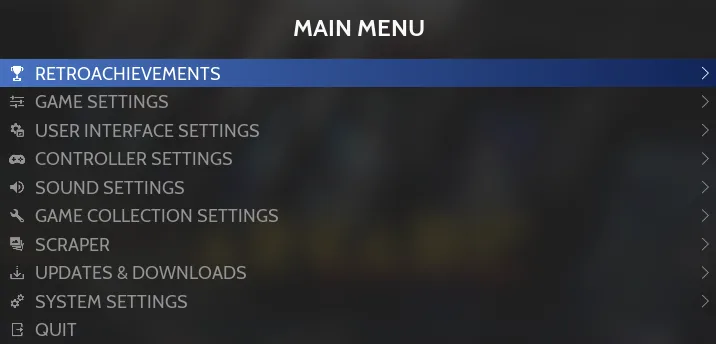
Open the main menu
From RetroBat’s System View or Game View, press START on your controller or Enter on your keyboard. This opens the Main Menu.
Find the settings you need
Game Settings contains default settings for games and emulators, along with save states, BIOS, and accounts.
- - User Interface Settings: theme, screensaver, and game-list display.
- - Controller Settings: controller configuration, player assignment, and guns.
- - Sound Settings: volume, music, and interface sounds.
- - Game Collection Settings: displayed systems and collections, grouped systems, and sorting.
Choose the scope of a change
The documented game settings apply to all systems and games. For a system-specific change, use View Options > Advanced System Options. For an individual game, use Game Options > Advanced Game Options.
Other menu entries
- - Scraper: download game information and media.
- - Updates & Downloads: access RetroBat updates, themes, bezels, and free content.
- - System Settings: language, interface mode, and advanced settings.
- - Quit: quit RetroBat, restart, or shut down.
The RetroAchievements entry shows your profile and progress. It appears only when a RetroAchievements account is configured.
Sources & references
Content responsibility: FrameTinker editorial desk. Source authors and software maintainers are credited separately below; this is not a claim of hands-on testing.
Published .
RetroBat: navigation — main menu — official gaming software documentation https://raw.githubusercontent.com/RetroBat-Official/retrobat-wiki/master/lang/en/navigation/main-menu.mdRetrieved Nov 5, 2026Something doesn’t match your setup?
Suggest a correction