

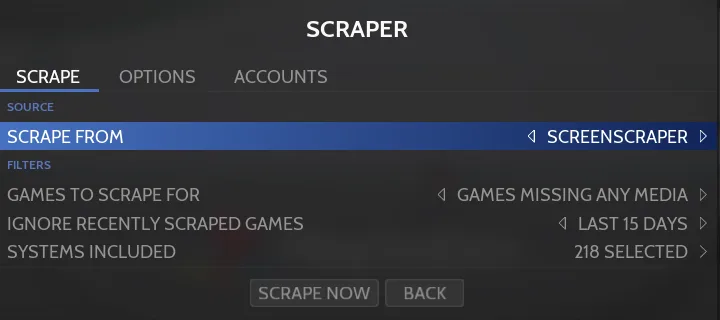
RetroBat scraping retrieves game details and media from online databases. Available content includes descriptions, release dates, genres, box art, screenshots, videos, manuals, and PadToKey settings. Use global scraping for all games or multiple systems; use per-game scraping for an individual game.
1. Choose a service and prepare credentials
- - ScreenScraper is the default service. The documentation recommends a free account for faster access and fewer limits.
- - TheGamesDB and HFSDB do not require an account.
- - ArcadeDB does not require an account and covers arcade games only.
- - IGDB requires a Client ID and Client Secret.
Open MAIN MENU > SCRAPER > ACCOUNTS. For ScreenScraper, enter your account's USERNAME and PASSWORD. For IGDB, create a free application on the Twitch developer website to obtain a Client ID and Client Secret, then enter them in RetroBat's IGDB account section. Select IGDB under SCRAPE FROM in the SCRAPE tab when you want to use it.
2. Set the scraping scope
- In the SCRAPE tab:
- 1. Set SCRAPE FROM to the database service you want to query.
- 2. Set GAMES TO SCRAPE FOR to all games, games missing any media, or games missing all media.
- 3. Use IGNORE RECENTLY SCRAPED GAMES to skip games scraped within a selected period, such as the last day, week, or month.
- 4. Choose the systems under SYSTEMS INCLUDED.
- 5. After reviewing the media options below, select SCRAPE NOW to start.
3. Choose media and overwrite settings
In the OPTIONS tab, IMAGE SOURCE selects the image type, such as a screenshot, title screen, mix, or box image. BOX SOURCE selects 2D or 3D box art, while LOGO SOURCE offers wheel, HD wheel, or marquee options. The same section includes a preferred-region setting and OVERWRITE NAMES / DESCRIPTIONS / MEDIAS controls.
Use the Scrape for section to choose the information and media to download, including community ratings, videos, fan art, bezels, maps, cartridge images, manuals, and PadToKey settings. For single-game scraping, INCLUDED SCRAPERS in the Manual scrape section controls which services are queried.
Where the results are stored
RetroBat saves game information and media links in the system folder's gamelist.xml file—for example, roms\snes\gamelist.xml. The documented media folders are images for artwork, videos for videos, manuals for PDF manuals, and magazines for magazines.
Add local artwork instead
The documentation gives these local-media naming examples for Super Metroid: Super Metroid-thumb.png for box art, Super Metroid-image.png for a screenshot, Super Metroid-marquee.png for a logo, and Super Metroid-video.mp4 for a video.
- 1. Copy artwork into the system's images folder and video files into its videos folder; the documented image-folder example is roms\snes\images. Images can use .png or .jpg.
- 2. Open MAIN MENU > SYSTEM SETTINGS > FRONTEND DEVELOPER OPTIONS > DATA MANAGEMENT.
- 3. Enable SEARCH FOR LOCAL ART.
Sources & references
Content responsibility: FrameTinker editorial desk. Source authors and software maintainers are credited separately below; this is not a claim of hands-on testing.
Published .
RetroBat: navigation — scraping and metadata — official gaming software documentation https://raw.githubusercontent.com/RetroBat-Official/retrobat-wiki/master/lang/en/navigation/scraping-and-metadata.mdRetrieved Nov 5, 2026Something doesn’t match your setup?
Suggest a correction