

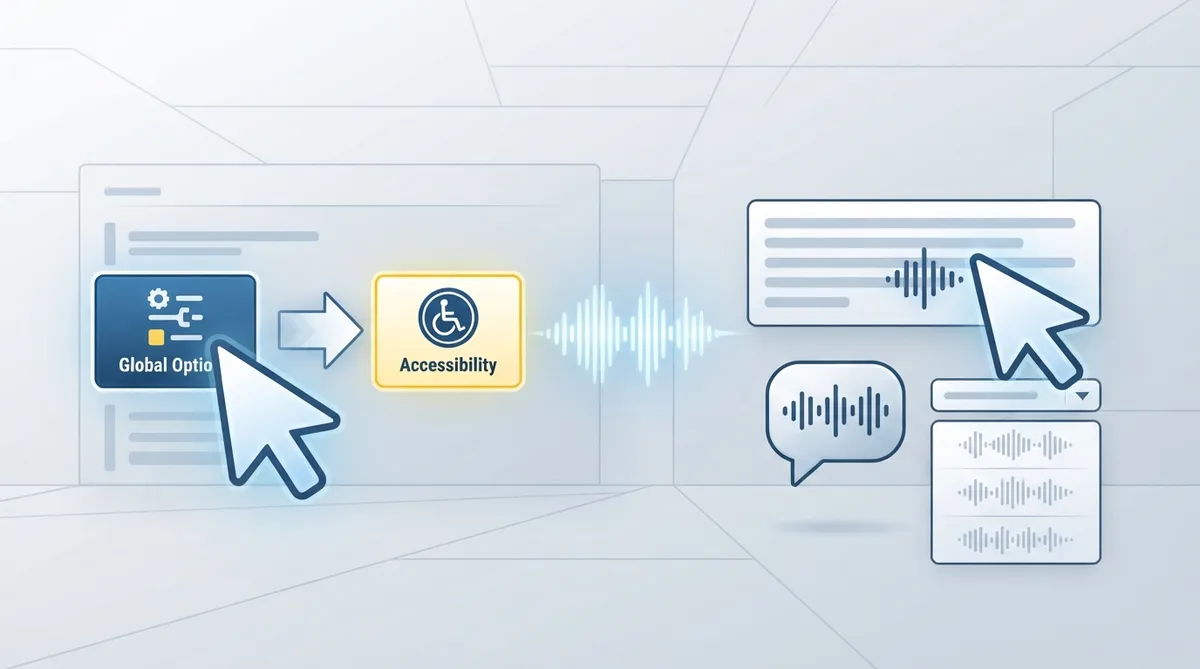
ScummVM's Launcher includes an Accessibility tab where accessibility settings can be changed. The official documentation describes how to reach the tab and what the documented text-to-speech option does.
Open the Accessibility tab
- 1. From the Launcher, select Global Options.
- 2. If necessary, click the > scroll arrow until the Accessibility tab is visible.
- 3. Select the Accessibility tab.
Use Text to Speech
The Use Text to Speech option enables text to speech. As the pointer is held over any text field in the Launcher, that text is converted to speech. A dropdown list lets you choose from a variety of voices.
Configuration file alternative
The documentation states that all settings can also be changed in the configuration file. For the text-to-speech setting, the documented configuration key is tts_enabled.
Reference table · Scroll horizontally to see all columns.
| Setting | What the documentation says | Configuration key |
|---|---|---|
| Use Text to Speech | Enables text to speech; Launcher text under the pointer is spoken. A dropdown list offers a variety of voices. | tts_enabled |
Sources & references
Content responsibility: FrameTinker editorial desk. Source authors and software maintainers are credited separately below; this is not a claim of hands-on testing.
Published .
ScummVM: accessibility — official gaming software documentation https://raw.githubusercontent.com/scummvm/scummvm/master/doc/docportal/settings/accessibility.rstRetrieved Oct 19, 2026Something doesn’t match your setup?
Suggest a correction