

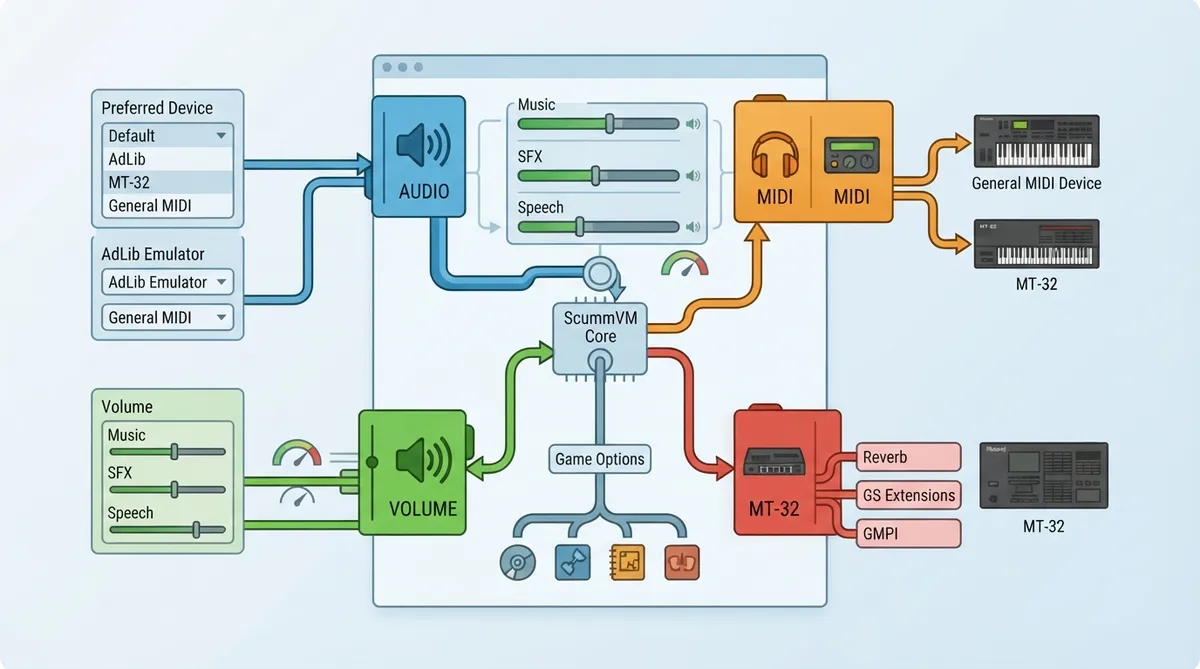
ScummVM groups its audio controls across four tabs: Audio, Volume, MIDI and MT-32. This guide summarizes what the official documentation says each tab and option does, and how global settings relate to game-specific ones. It is a source summary, not a hands-on test.
Where to find the audio settings
Audio settings are found on four tabs: Audio, Volume, MIDI and MT-32.
Global settings vs. game-specific settings
- To change settings globally:
- 1. From the Launcher, select Global Options.
- 2. Select the applicable audio tab.
- To change settings for a specific game:
- 1. From the Launcher, highlight the game in the games list.
- 2. Select the Game Options button.
- If the Launcher is in grid view, select the game first, then open its game options.
Audio device and emulator
Preferred device (global settings) or Music device (game-specific settings) specifies the device ScummVM uses to output audio. When set to <default>, ScummVM automatically chooses the option it considers most appropriate for the played game. If an MT-32 or MIDI device is selected, or ScummVM chooses one automatically, the settings on the MT-32 and MIDI tabs also apply.
AdLib Emulator chooses which emulator ScummVM uses when the AdLib emulator is selected as the Preferred device.
Speech, subtitles and volume
For games with digitized speech, the Text and Speech setting lets you choose speech only, subtitles only, or both.
Subtitle speed adjusts how long subtitles stay on screen. The documentation notes that the meaning of the value depends on the game: some games treat it as a delay (a higher value displays subtitles longer), while others treat it as a speed. Games that treat it as a delay include all LucasArts games except Grim Fandango and Escape from Monkey Island, all Sierra games, and the Discworld games. Most other games treat it as a speed.
- The Volume tab includes these documented controls:
- - Music volume: adjusts the volume of the music in the game.
- - SFX volume: adjusts the volume of the sound effects in the game.
- - Speech volume: adjusts the volume of digitized speech, if the game has any.
- - Mute All: mutes all game audio.
MIDI options
- The MIDI tab includes these documented controls:
- - GM Device: specifies a preferred General MIDI device, which ScummVM uses if the Preferred device is set to <default> and General MIDI playback is required.
- - Soundfont: specifies the path to a soundfont file, if the GM device requires one.
- - Mixed AdLib/MIDI mode: combines MIDI music with AdLib sound effects.
- - MIDI gain: adjusts the relative volume of MIDI music; only some music devices support it.
MT-32 settings
The documentation lists MT-32 as one of the four audio tabs. It states that when an MT-32 device is selected as the Preferred device, or ScummVM chooses one automatically, the MT-32 tab's settings also apply.
Reference table · Scroll horizontally to see all columns.
| Tab | Documented controls covered here |
|---|---|
| Audio | Preferred device / Music device, AdLib Emulator, Text and Speech, Subtitle speed |
| Volume | Music volume, SFX volume, Speech volume, Mute All |
| MIDI | GM Device, Soundfont, Mixed AdLib/MIDI mode, MIDI gain |
| MT-32 | Settings apply when an MT-32 device is selected or chosen automatically |
Sources & references
Content responsibility: FrameTinker editorial desk. Source authors and software maintainers are credited separately below; this is not a claim of hands-on testing.
Published .
ScummVM: audio — official gaming software documentation https://raw.githubusercontent.com/scummvm/scummvm/master/doc/docportal/settings/audio.rstRetrieved Oct 19, 2026Something doesn’t match your setup?
Suggest a correction