

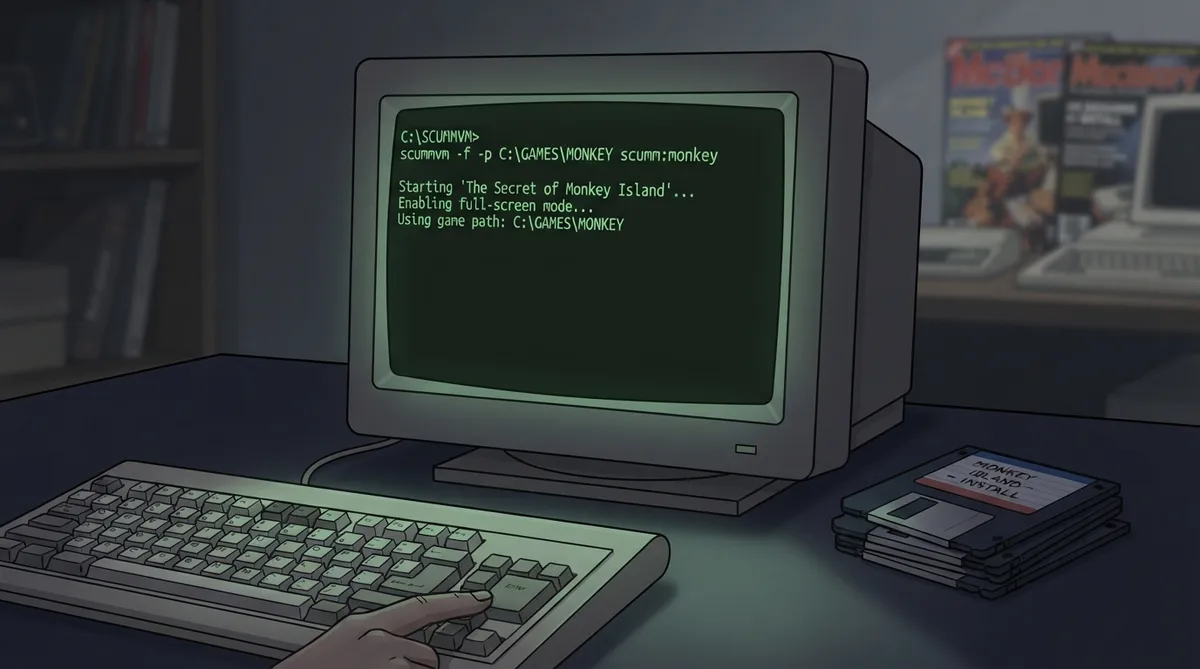
ScummVM can be started from the command line, which lets you pass a number of options. Some of these options override the applicable global or game-specific settings. Launching this way also lets you go straight into a game without opening the Launcher first.
Basic usage
The documented form is the command, followed by an option and an optional game. By default, running the command with no game starts the Launcher. Specify a game or use the auto-detect option to start a game directly.
scummvm [option] [game]Some options, such as the help option or the audio-device listing option, show information about ScummVM directly on the command line without starting the Launcher or starting a game.
Identifying a game on the command line
There are several documented ways to tell ScummVM which game to start. You can use a saved target name, a game ID together with a path to the game files, or auto-detection with a path. The documentation also provides commands to list available targets and game IDs.
- Use a saved target name: scummvm <target>
- Use a game ID with a game path: scummvm -p <path to game files> <game id>
- Use auto-detection with a game path: scummvm -p <path to game files> --auto-detect
- List available targets: scummvm --list-targets
- List available game IDs: scummvm --list-games
Game ID format and engine names
The full game ID contains both an engine name and a game name, written as engine:game. For example, the game ID for Full Throttle is scumm:ft, where scumm is the engine name. In many cases where there is no ambiguity, the engine name can be omitted, so both scumm:ft and ft can be used. If the game name is ambiguous, the full game ID must be used. For Indiana Jones and the Fate of Atlantis, for example, only scumm:atlantis can be used because atlantis alone would be ambiguous with cryomni3d:atlantis.
Documented example options
The documentation's examples use a few frequently referenced options: -p for the path to the game files, and example flag usage including -f and -n. The Windows examples in the documentation assume the ScummVM executable path shown in the example command line.
C:\Program Files\ScummVM\scummvm.exe -f monkey1C:\Program Files\ScummVM\scummvm.exe -f -n -p "D:\resource" scumm:ftReference table · Scroll horizontally to see all columns.
| Documented item | Example value or form |
|---|---|
| Game path option | -p |
| Full-screen flag (example) | -f |
| Subtitles flag (example) | -n |
| Game ID format | engine:game (e.g. scumm:ft) |
| Short game ID accepted when unambiguous | ft |
| Full game ID required when ambiguous | scumm:atlantis |
| List targets | scummvm --list-targets |
| List games | scummvm --list-games |
| Auto-detect | --auto-detect |
Sources & references
Content responsibility: FrameTinker editorial desk. Source authors and software maintainers are credited separately below; this is not a claim of hands-on testing.
Published .
ScummVM: command line — official gaming software documentation https://raw.githubusercontent.com/scummvm/scummvm/master/doc/docportal/advanced_topics/command_line.rstRetrieved Oct 19, 2026Something doesn’t match your setup?
Suggest a correction