

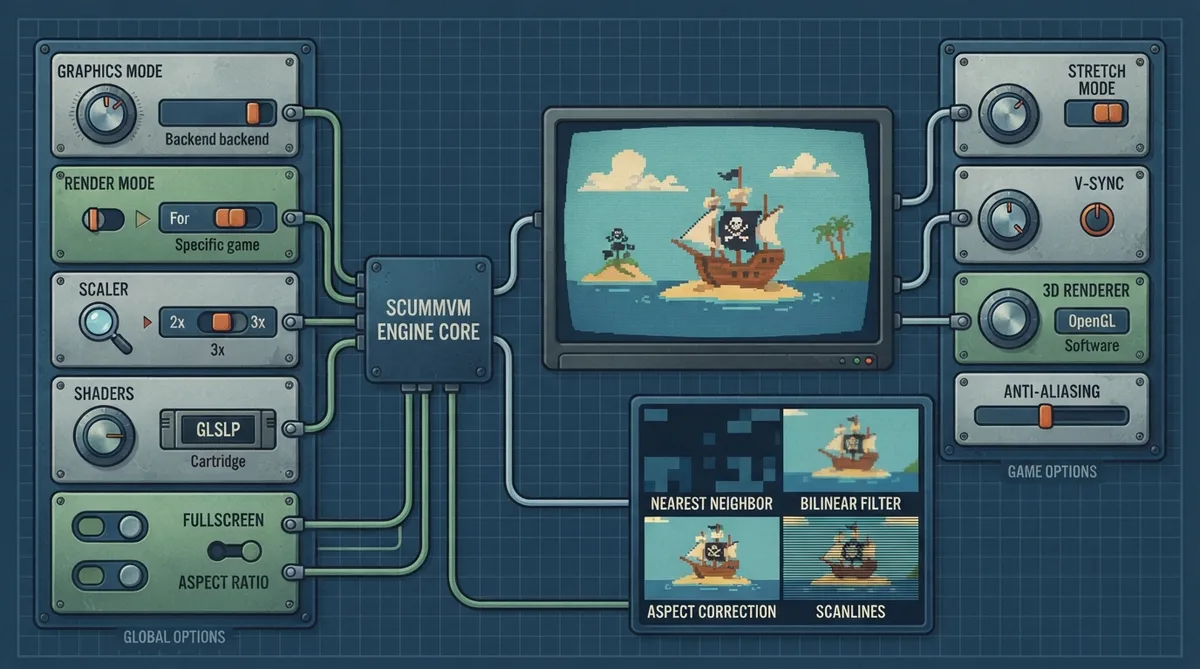
ScummVM's Graphics tab controls how games look when they are played. The official documentation describes two entry points: one for settings applied globally and one for settings applied to a specific game. It also documents what each option on the tab is intended to change.
Changing settings globally
From the Launcher, select Global Options. The Global Options menu opens on the Graphics tab, where changes apply across games rather than to a single title.
Changing settings for one game
From the Launcher, highlight the game in the games list and select the Game Options button. If the Launcher is in grid view, select the game and then select the gear icon in the popup window. This opens the game's own options, where the Graphics tab applies only to that game.
Documented Graphics options
The documentation lists each option on the Graphics tab with a description of what it changes. The specific options available can vary by graphics mode, since different modes expose different settings such as scalers and stretch modes.
- Graphics mode: changes the graphics backend used to render the ScummVM window on the screen; different graphics modes have different options available (such as scalers and stretch modes).
- Render mode: changes how the game is rendered; the documentation says this is only applicable to certain games released on multiple systems and reproduces what the game looked like on that system.
- Stretch mode: changes the way the game is displayed in relation to the window or screen size.
- Scaler: changes the resolution of the game while also selecting which filter is used to scale up the resolution; for example, a 2x scaler takes a 320x200 game and scales it up to 640x400.
- Shaders: graphics filters that change the way a game looks, described as similar to render mode but applicable to all games.
- Aspect ratio correction: when ticked, corrects the aspect ratio so games appear as they would on original 320x200 resolution displays.
- Fullscreen mode: when ticked, games use the entire screen instead of a window; the actual appearance is defined by the other graphics settings.
- Filter graphics: when ticked, uses bilinear interpolation instead of nearest neighbor resampling for aspect ratio correction and stretch mode; it does not affect the graphics mode.
- V-Sync in 3D games: when ticked, synchronizes the frame rate of a game with the monitor's refresh rate to prevent screen tearing.
- Game 3D renderer: changes how a 3D game is rendered and has no effect on 2D games; the documented choices are OpenGL (renders on hardware, using the GPU), OpenGL with shaders (renders on hardware with shader support) and Software (renders on software, using the CPU).
- 3D Anti-aliasing: changes the anti-aliasing method; the number refers to how many samples are taken per pixel, with 8x taking 8 samples per pixel and being the most accurate but also the most processor-intensive option.
Selecting a shader
The documentation gives a specific procedure for shaders: select the Shader button, select a shader from the list, and then select Choose. As an alternative, select Pick file instead... to browse your computer for shaders to use. ScummVM only accepts GLSL files in the .glslp format.
Reference table · Scroll horizontally to see all columns.
| Option | What the documentation says it changes |
|---|---|
| Graphics mode | Graphics backend used to render the ScummVM window; available options differ by mode |
| Render mode | How the game is rendered; only applies to certain games released on multiple systems |
| Stretch mode | How the game is displayed relative to the window or screen size |
| Scaler | Game resolution and the filter used to scale it up (for example, 2x from 320x200 to 640x400) |
| Shaders | Graphics filters that change how a game looks; available to all games |
| Aspect ratio correction | Aspect ratio, to match original 320x200 resolution displays |
| Fullscreen mode | Whether the game uses the full screen instead of a window |
| Filter graphics | Uses bilinear interpolation instead of nearest neighbor resampling for aspect ratio correction and stretch mode; does not affect graphics mode |
| V-Sync in 3D games | Synchronizes frame rate with the monitor's refresh rate to prevent screen tearing |
| Game 3D renderer | How a 3D game is rendered (OpenGL, OpenGL with shaders, or Software); no effect on 2D games |
| 3D Anti-aliasing | Anti-aliasing method; the number is samples per pixel, with 8x the most accurate and most processor-intensive |
Sources & references
Content responsibility: FrameTinker editorial desk. Source authors and software maintainers are credited separately below; this is not a claim of hands-on testing.
Published .
ScummVM: graphics — official gaming software documentation https://raw.githubusercontent.com/scummvm/scummvm/master/doc/docportal/settings/graphics.rstRetrieved Oct 19, 2026Something doesn’t match your setup?
Suggest a correction