

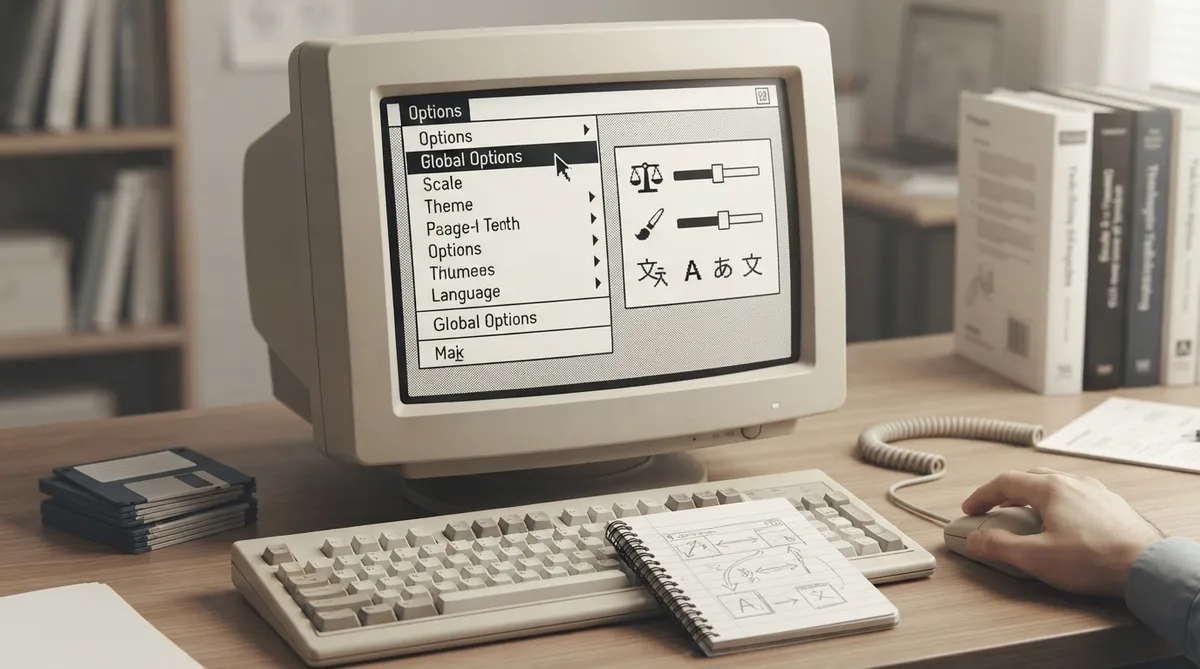
The GUI tab in ScummVM's Global Options controls the look and feel of the ScummVM graphical user interface. This reference summarizes what each documented control does and how to reach the tab. It is a source summary of the official documentation, not a hands-on tested walkthrough.
Opening the GUI tab
- 1. From the Launcher, select **Global Options**.
- 2. If necessary, click the **>** scroll arrow until the GUI tab is visible.
- 3. Select the **GUI** tab.
The documented settings can also be changed in ScummVM's configuration file, and the relevant configuration key is listed alongside each option in the official documentation.
Appearance settings
**Theme** changes the visual appearance of the ScummVM Launcher.
**GUI scale** scales the ScummVM GUI to be bigger or smaller. The documentation notes that a larger scale can help make text easier to read when using ScummVM on a big screen.
**GUI renderer** defines how the ScummVM GUI is rendered: normal or antialiased.
Language settings
**GUI language** chooses the language of the ScummVM Launcher.
The option to switch the ScummVM GUI language to the game language works as follows: if ticked, the Launcher language is the same as the game language.
Behavior settings
**Use native system file browser** uses the system file browser instead of the ScummVM browser.
**Always return to the launcher when leaving a game**: if ticked, this removes the **Quit** option from the Global Main Menu, leaving only the **Return to Launcher** option.
**Ask for confirmation on exit**: if ticked, a confirmation dialog appears when you choose **Quit** or **Return to Launcher** from the Global Main Menu.
Updating game icons
- 1. Click the **Update Icons** button to download new or updated artwork for game icons.
- 2. ScummVM scans to find applicable icons.
- 3. Once icons have been found, click **Download** in the pop-up window to start the download.
- 4. Click **Hide** to close the window and continue the download in the background.
- 5. Use **Cancel download** to cancel the download.
Reference table · Scroll horizontally to see all columns.
| Control | Documented effect |
|---|---|
| Theme | Changes the visual appearance of the ScummVM Launcher |
| GUI scale | Scales the GUI bigger or smaller; a larger scale can help text readability on a big screen |
| GUI renderer | Sets rendering to normal or antialiased |
| GUI language | Chooses the Launcher language |
| Use game language for GUI | When ticked, the Launcher language matches the game language |
| Use native system file browser | Uses the system file browser instead of the ScummVM browser |
| Always return to launcher at exit | Removes Quit from the Global Main Menu, leaving only Return to Launcher |
| Ask for confirmation on exit | Shows a confirmation dialog for Quit or Return to Launcher |
| Update Icons | Downloads new or updated game icon artwork, with Download, Hide and Cancel download options |
Sources & references
Content responsibility: FrameTinker editorial desk. Source authors and software maintainers are credited separately below; this is not a claim of hands-on testing.
Published .
ScummVM: gui — official gaming software documentation https://raw.githubusercontent.com/scummvm/scummvm/master/doc/docportal/settings/gui.rstRetrieved Oct 19, 2026Something doesn’t match your setup?
Suggest a correction