

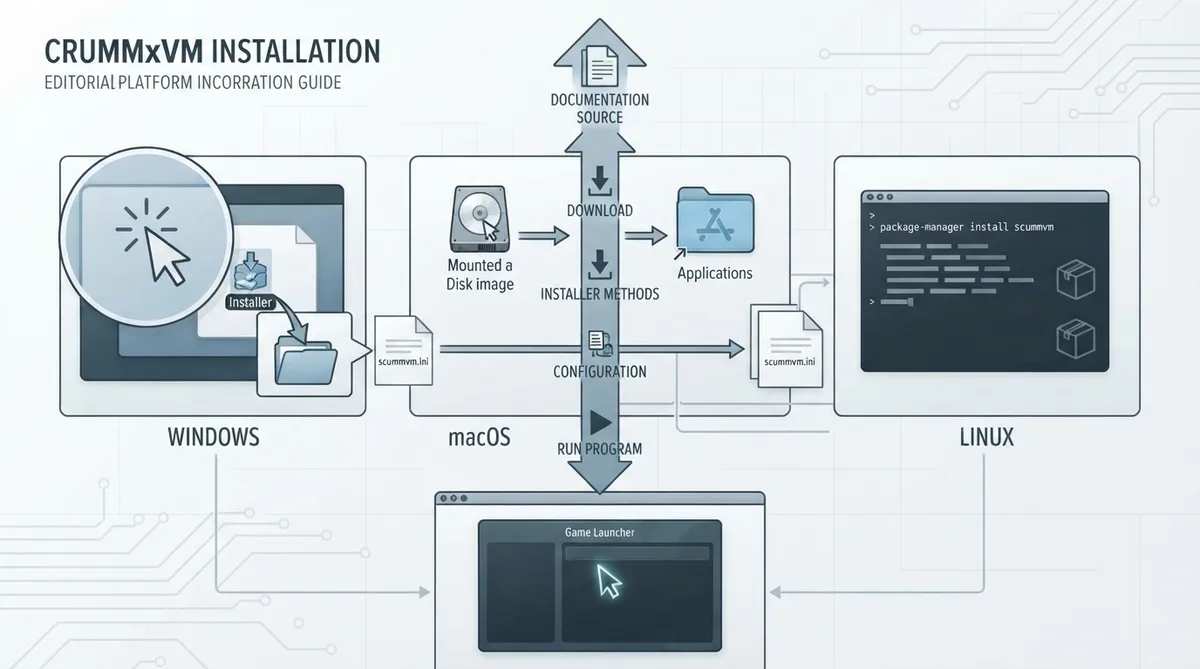
This guide summarizes the official ScummVM documentation for installing ScummVM on a computer. It covers the documented Windows, macOS and Linux installation methods and how to run the program afterward. The instructions below are a source summary; they have not been independently tested.
Windows
The documentation describes two ways to install ScummVM on Windows: using the installer or installing manually from a zip file.
Installer method
- 1. Download the Windows installer for your operating system from the ScummVM downloads page.
- 2. Double-click the downloaded file to start the installer.
- 3. Follow the installer prompts; the installer guides you through the process.
- 4. The installer adds a Start Menu shortcut, and there is an option to add a desktop shortcut.
To run ScummVM after installation, either double-click the desktop shortcut or go to Start > All Apps > ScummVM. For Windows XP, the documented path is Start > All Apps > ScummVM.
Manual method
- 1. Download the Windows zip file for your operating system (32-bit or 64-bit).
- 2. Right-click the downloaded folder and select Extract All to extract the files.
- 3. Run ScummVM by locating scummvm.exe in the extracted folder and double-clicking it.
For portable mode on Windows, create an empty file named scummvm.ini in the folder where you extracted the ScummVM zip file.
macOS
- 1. Download the recommended disk image file from the ScummVM downloads page.
- 2. After the download completes, double-click the file to mount the disk image.
- 3. A window containing the ScummVM icon opens.
- 4. Drag the ScummVM icon into your Applications folder to install it.
- 5. Launch ScummVM from the Applications folder.
macOS includes Gatekeeper, which checks that only trusted software runs on your Mac. ScummVM is not available from the App Store. The documentation directs users to follow the steps on Apple's support page to allow ScummVM to run.
Linux
Snap
If Snap is not already installed, install it first. Then install ScummVM with the command: sudo snap install scummvm
sudo snap install scummvmTo run ScummVM after a Snap install, enter scummvm on the command line, or launch it through the desktop interface by clicking Menu > Games > ScummVM.
Flatpak
If Flatpak is not already installed, install it first. Then install ScummVM with the command: flatpak install flathub org.scummvm.ScummVM
flatpak install flathub org.scummvm.ScummVMRun ScummVM with: flatpak run org.scummvm.ScummVM. Command line arguments can be added after 'run'.
flatpak run org.scummvm.ScummVMThis guide is limited to the platforms and methods covered in the cited ScummVM documentation. Other platforms are directed to the relevant platform guide in that documentation.
Reference table · Scroll horizontally to see all columns.
| Platform | Method | Key action | How to run |
|---|---|---|---|
| Windows | Installer | Download and run the installer from the downloads page | Desktop shortcut or Start > All Apps > ScummVM |
| Windows | Manual zip | Download and extract the zip file | Double-click scummvm.exe |
| Windows | Portable mode | Create empty scummvm.ini in the extracted folder | Launch from the extracted folder |
| macOS | Disk image | Mount the disk image and drag ScummVM to Applications | Launch from Applications |
| Linux | Snap | sudo snap install scummvm | scummvm or Menu > Games > ScummVM |
| Linux | Flatpak | flatpak install flathub org.scummvm.ScummVM | flatpak run org.scummvm.ScummVM |
Sources & references
Content responsibility: FrameTinker editorial desk. Source authors and software maintainers are credited separately below; this is not a claim of hands-on testing.
Published .
ScummVM: install computer — official gaming software documentation https://raw.githubusercontent.com/scummvm/scummvm/master/doc/docportal/use_scummvm/install_computer.rstRetrieved Oct 19, 2026Something doesn’t match your setup?
Suggest a correction