

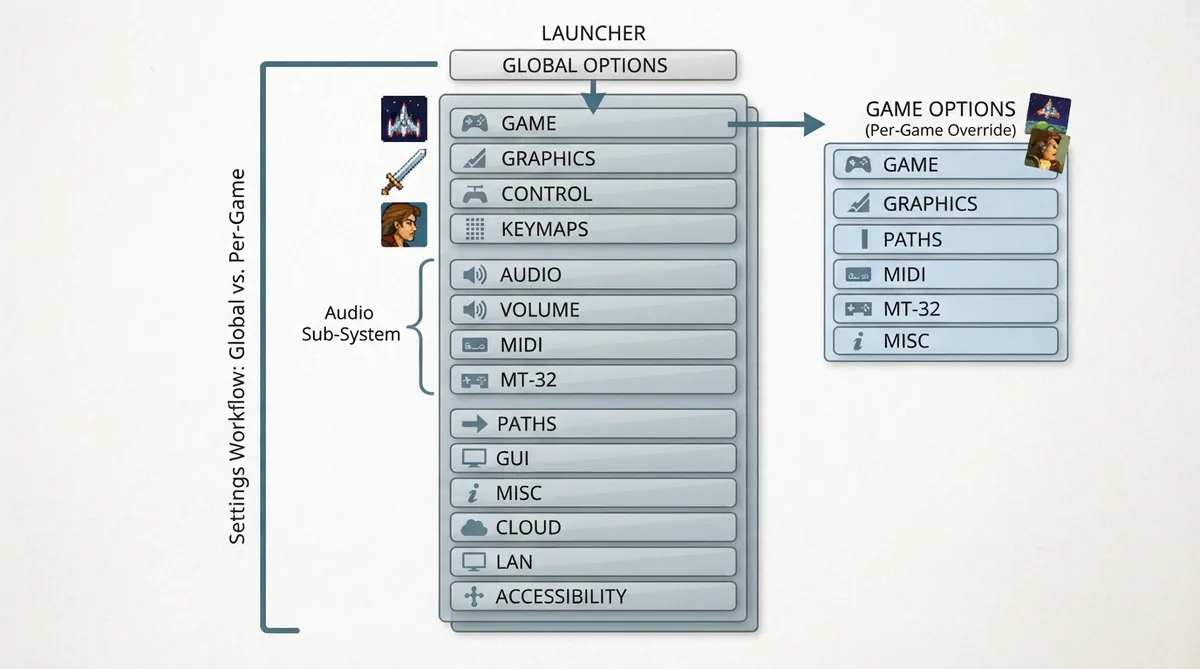
ScummVM settings are managed from the Launcher and organized by subject across a set of tabs. This guide summarizes the documented workflow for opening those settings, choosing whether a change applies to all games or a single game, and understanding why some tabs may not appear for a given title.
Settings are grouped by tab
In the Launcher, settings are arranged by subject on different tabs. The documented tabs are Game, Graphics, Control, Keymaps, Audio, Volume, Midi, MT-32, Paths, GUI, Misc, Cloud, LAN and Accessibility.
- Audio-related settings are spread over more than one tab, so check the Audio, Volume, Midi and MT-32 tabs when adjusting sound.
Change a setting for all games
- 1. In the Launcher, select the Global Options button to open the menu.
- 2. Select the tab containing the setting you want to change.
- 3. Adjust the setting. Because this is the global menu, the change affects all games.
Change a setting for one game
- 1. Highlight the game in the games list.
- 2. Select the Game Options button.
- 3. Select the tab containing the setting you want to change.
- 4. If the Launcher is in grid view, select the game and then select the gear icon in the pop-up window instead.
Make per-game settings take effect
To make a game use the settings in its Game Options tab instead of the Global Options tab, tick Override global settings.
Why some tabs are missing
Settings outside the Launcher
ScummVM settings can also be handled through the configuration file and, for some settings, on the command line. The config file documentation covers how that works, and each setting page lists its configuration keys in italics after the setting description.
Some settings can be specified on the command line; the complete list is in the command line documentation. Values given this way are valid for the duration of the program and are not saved to the configuration file unless modified. They are also marked by a special color in the Launcher tabs.
If a per-game change does not seem to apply, check whether Override global settings is ticked in that game's Game Options. If a tab you expect is missing, confirm the game actually supports those settings, as with MIDI-related tabs for games without a MIDI soundtrack.
Reference table · Scroll horizontally to see all columns.
| Tab | Documented purpose area |
|---|---|
| Game | Per-game game settings |
| Graphics | Graphics settings |
| Control | Control settings |
| Keymaps | Key mapping |
| Audio | Audio settings |
| Volume | Volume settings |
| Midi | MIDI settings |
| MT-32 | MT-32 settings |
| Paths | Path settings |
| GUI | Launcher interface |
| Misc | Miscellaneous settings |
| Cloud | Cloud settings |
| LAN | LAN settings |
| Accessibility | Accessibility settings |
Sources & references
Content responsibility: FrameTinker editorial desk. Source authors and software maintainers are credited separately below; this is not a claim of hands-on testing.
Published .
ScummVM: how to settings — official gaming software documentation https://raw.githubusercontent.com/scummvm/scummvm/master/doc/docportal/use_scummvm/how_to_settings.rstRetrieved Oct 19, 2026Something doesn’t match your setup?
Suggest a correction