

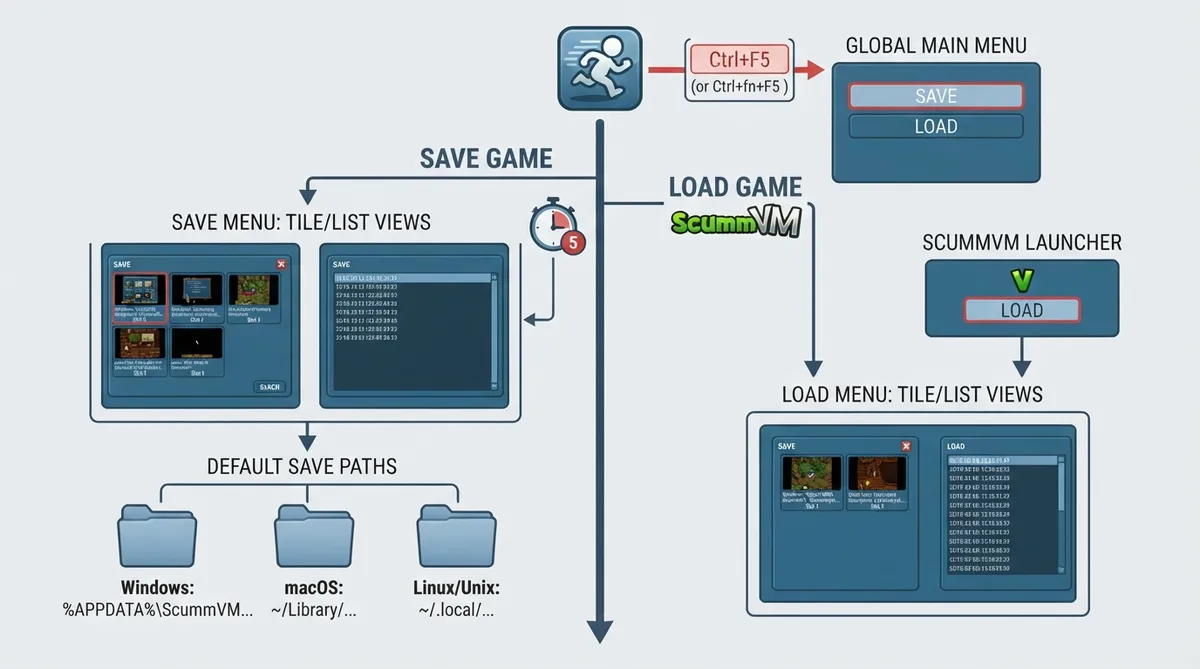
ScummVM lets you save and load a game in two ways: through the in-game Global Main Menu (GMM), or by selecting Load directly from the Launcher without starting the game first. This guide summarizes the official documentation for that workflow and notes the documented controls, interface views, save behavior, and default save folders.
Saving a game in ScummVM
- 1. While you are playing a game and ready to save, press Ctrl+F5 (Ctrl+fn+F5 on a Mac) to open the Global Main Menu.
- 2. Select Save.
- 3. In tile view, click the New Save tile, enter a description for the save, then click OK.
Loading a saved game
To load a save without starting the game first, select the Load button directly from the Launcher. To load a save while a game is already running, press Ctrl+F5 (Ctrl+fn+F5 on a Mac) to open the Global Main Menu, then select Load.
List view versus grid view
The save/load window offers two views, list view and grid view; click the list and grid icons at the bottom left of the window to switch between them. In list view, the left pane lists your saved games and the right pane shows timestamps, screenshots, and playtime for the highlighted save. In grid view, each tile shows a screenshot of the saved state plus a description and save slot number, and clicking a tile loads that save.
Automatic saving
ScummVM saves your game automatically every 5 minutes. The autosave period can be changed in the Misc settings tab or in the configuration file.
Where ScummVM stores saved games
On Windows, the documented save location is %APPDATA%\ScummVM\Saved games.
On macOS, the documented location is ~/Library/Application Support/ScummVM/Savegames/. The documentation notes that with ScummVM versions prior to 2.9, saves were stored in ~/Documents/ScummVM Savegames/.
On Linux, ScummVM follows the XDG Base Directory Specification, so saves are found at ~/.local/share/scummvm/saves/ by default, though the exact path can vary depending on the value of the XDG_DATA_HOME environment variable.
Reference table · Scroll horizontally to see all columns.
| Platform | Default save location |
|---|---|
| Windows | %APPDATA%\ScummVM\Saved games |
| macOS (ScummVM 2.9 and later) | ~/Library/Application Support/ScummVM/Savegames/ |
| macOS (before ScummVM 2.9) | ~/Documents/ScummVM Savegames/ |
| Linux/Unix | ~/.local/share/scummvm/saves/ (may vary with XDG_DATA_HOME) |
Reference table · Scroll horizontally to see all columns.
| Action | How to do it |
|---|---|
| Open Global Main Menu | Ctrl+F5 (Ctrl+fn+F5 on a Mac) |
| Save a game | Open the GMM, then select Save |
| Load a game while playing | Open the GMM, then select Load |
| Load a game without starting it | Select Load in the Launcher |
Sources & references
Content responsibility: FrameTinker editorial desk. Source authors and software maintainers are credited separately below; this is not a claim of hands-on testing.
Published .
ScummVM: save load games — official gaming software documentation https://raw.githubusercontent.com/scummvm/scummvm/master/doc/docportal/use_scummvm/save_load_games.rstRetrieved Oct 19, 2026Something doesn’t match your setup?
Suggest a correction