

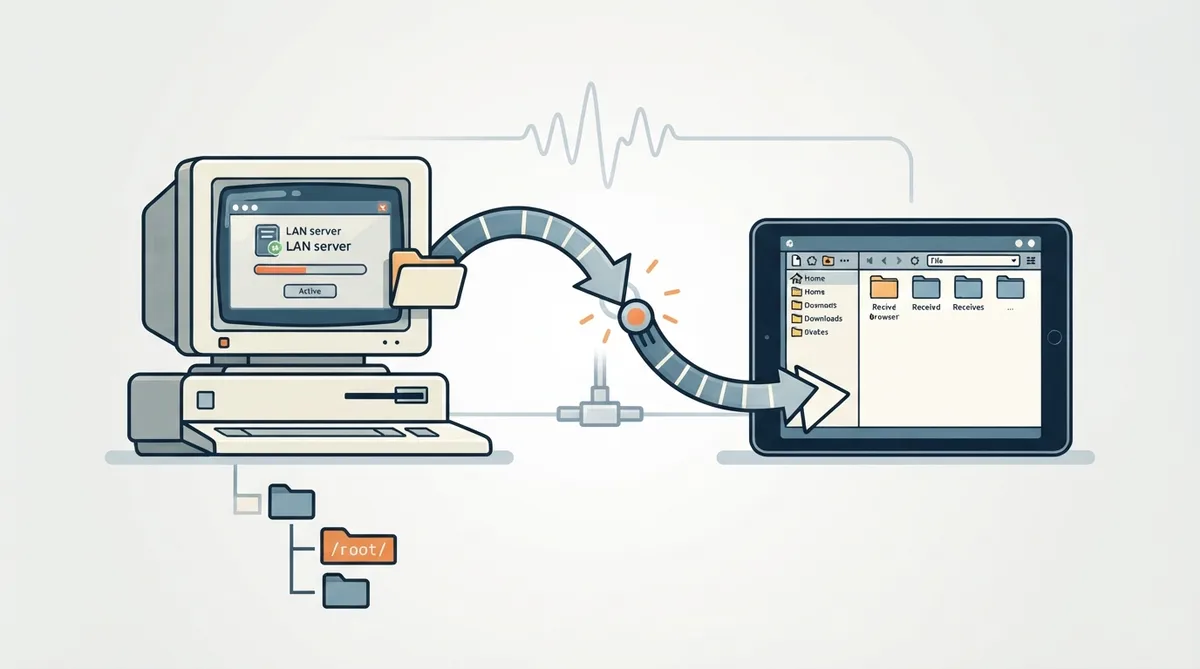
ScummVM can run a local web server (LAN) to simplify transferring game files, saved games and configuration files between devices on the same network. The official documentation presents this as a good option if you do not want to use the Cloud, or if ScummVM for your platform lacks cloud functionality.
Starting the LAN server
- From the Launcher, select Options, click the > scroll arrow until the LAN tab is visible, then select the LAN tab.
- Click Run server to start the server.
- Type the URL shown in the LAN tab into the address bar of any web browser to access the server.
Downloading and uploading files
- To download a file, click on the file to open the system download dialog.
- To upload files, click Upload Files and select files from the system file browser.
Choosing which files the server exposes
To change which files are accessible on the web server, set the /root/ Path to the directory containing the files you wish to access. You can access anything inside that directory, but you cannot access its parent directory. On some platforms ScummVM sets the /root/ Path automatically; on others you need to configure it manually before running the web server for the first time.
Stopping the server
To stop the web server, click Stop server, or click Ok to close the settings dialog.
Sources & references
Content responsibility: FrameTinker editorial desk. Source authors and software maintainers are credited separately below; this is not a claim of hands-on testing.
Published .
ScummVM: LAN — official gaming software documentation https://raw.githubusercontent.com/scummvm/scummvm/master/doc/docportal/use_scummvm/LAN.rstRetrieved Oct 19, 2026Something doesn’t match your setup?
Suggest a correction