

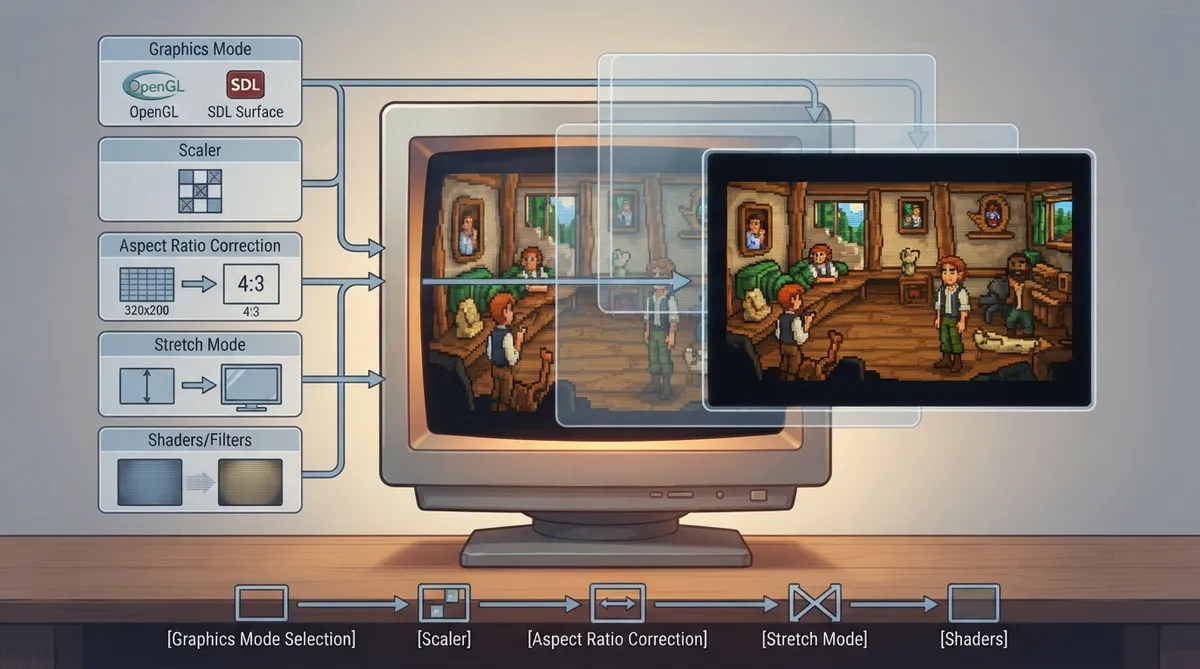
ScummVM's graphics settings do not act independently: the graphics mode, scaler, aspect ratio and stretch mode settings combine to determine the resolution and display of each game. This guide summarizes what the official ScummVM documentation says about each control and how the pieces fit together.
Graphics modes and scalers
Most platforms expose one or two graphics modes. The most common are OpenGL and SDL Surface.
The order in which processing is applied differs between the modes. In SDL Surface mode, the scaler is applied first, then aspect ratio correction, then stretch mode. In OpenGL mode there is no scaler; aspect ratio correction and stretch mode are applied together in a single pass to produce the final image.
The documentation notes that if you want to preserve pixels, OpenGL mode may be preferable, especially when aspect ratio correction is enabled, because the aspect ratio correction in SDL Surface mode introduces some irregularities that OpenGL mode avoids.
Aspect ratio correction
Older games were designed for 320x200 pixel displays where pixels were rectangular rather than square. On modern systems such games can appear wider and flatter than intended. Aspect ratio correction addresses this by duplicating lines of pixels.
Aspect ratio correction can be toggled on and off with Ctrl+Alt+A.
Stretch mode
Stretch modes control how the game screen is stretched to fill the ScummVM window, or the whole screen in full-screen mode.
You can cycle between stretch modes with Ctrl+Alt+S.
Filter graphics (bilinear interpolation)
When the filter graphics option is enabled, ScummVM uses bilinear interpolation instead of nearest-neighbor sampling for aspect ratio and stretch mode processing. It does not affect the graphics mode scaler.
The documentation lists Ctrl+Alt+F as the shortcut for toggling between bilinear interpolation and nearest-neighbor sampling.
Render mode
For most games the render mode setting has no effect. For some older games that could be played on different systems and graphics cards, this control lets you choose which original system ScummVM should reproduce.
Shaders
Shaders change the way a game is rendered. The documentation describes using them to recreate a game's original look down to display borders and LCD or CRT characteristics, or simply to improve the overall look and feel.
3D game rendering and anti-aliasing
The documentation lists three options for rendering 3D games: OpenGL, OpenGL with shaders, and software rendering.
Without anti-aliasing, the computer samples the color at the center of each pixel and applies it to the whole pixel, producing jagged, pixelated edges on objects. Anti-aliasing is how smooth lines are achieved in 3D games.
Documented toggles at a glance
The table below summarizes the shortcuts given in the official documentation.
If a change produces an unwanted display result, the same documented toggles can be used to switch back: Ctrl+Alt+A for aspect ratio, Ctrl+Alt+S to cycle stretch modes, and Ctrl+Alt+F to switch between bilinear interpolation and nearest-neighbor sampling.
Reference table · Scroll horizontally to see all columns.
| Setting | Documented action |
|---|---|
| Ctrl+Alt+A | Toggle aspect ratio correction on and off |
| Ctrl+Alt+S | Switch between stretch modes |
| Ctrl+Alt+F | Toggle between bilinear interpolation and nearest-neighbor |
Sources & references
Content responsibility: FrameTinker editorial desk. Source authors and software maintainers are credited separately below; this is not a claim of hands-on testing.
Published .
ScummVM: understand graphics — official gaming software documentation https://raw.githubusercontent.com/scummvm/scummvm/master/doc/docportal/advanced_topics/understand_graphics.rstRetrieved Oct 19, 2026Something doesn’t match your setup?
Suggest a correction